> ## Documentation Index
> Fetch the complete documentation index at: https://docs.gately.ai/llms.txt
> Use this file to discover all available pages before exploring further.
# AI Assistants
> Guide to enabling and using AI assistants in Gately AI
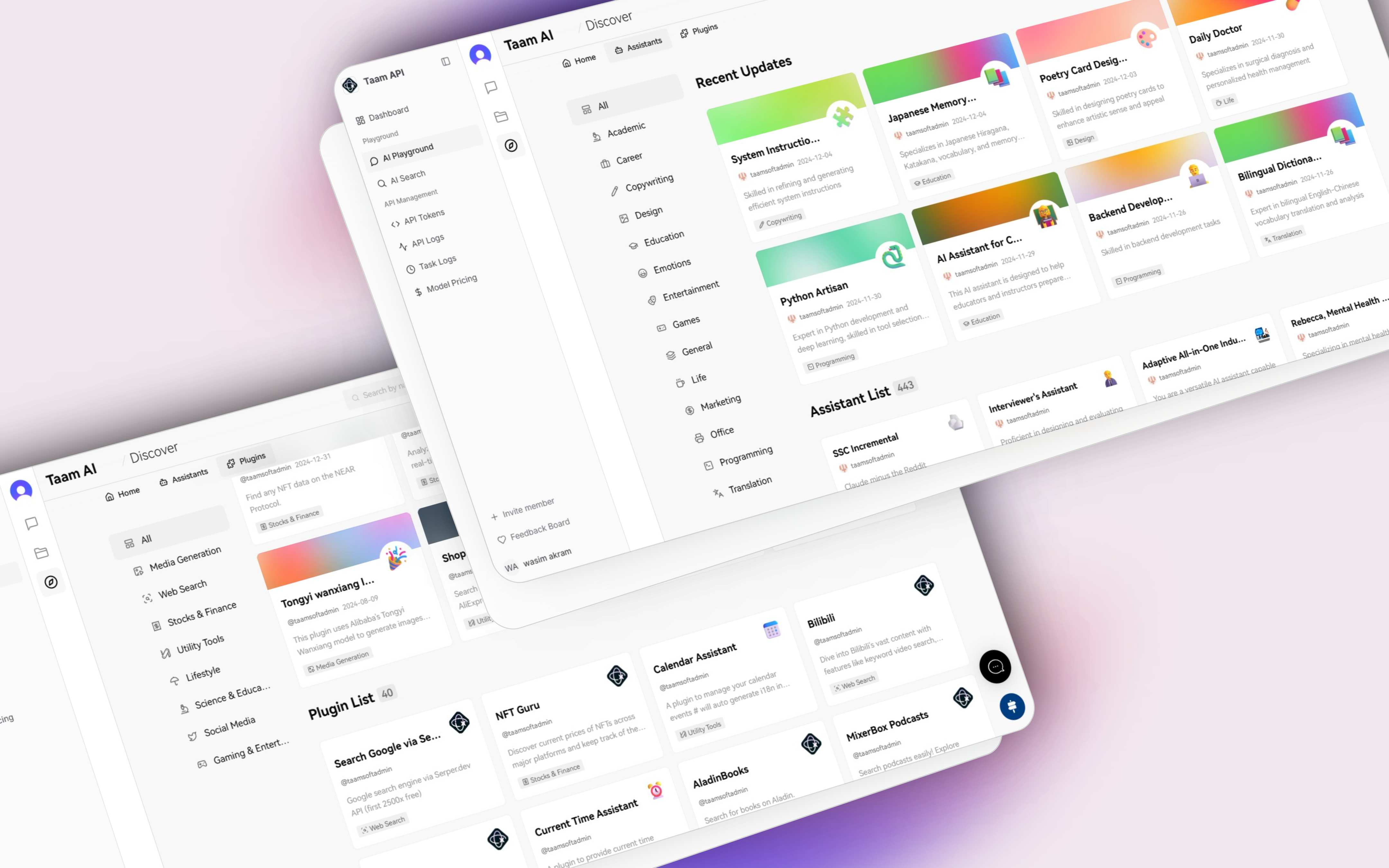 ## Enabling an Assistant
1. Open your browser
2. Visit [Gately AI Playground](https://app.gately.ai/dashboard/playground)
3. Sign in if needed
## Enabling an Assistant
1. Open your browser
2. Visit [Gately AI Playground](https://app.gately.ai/dashboard/playground)
3. Sign in if needed
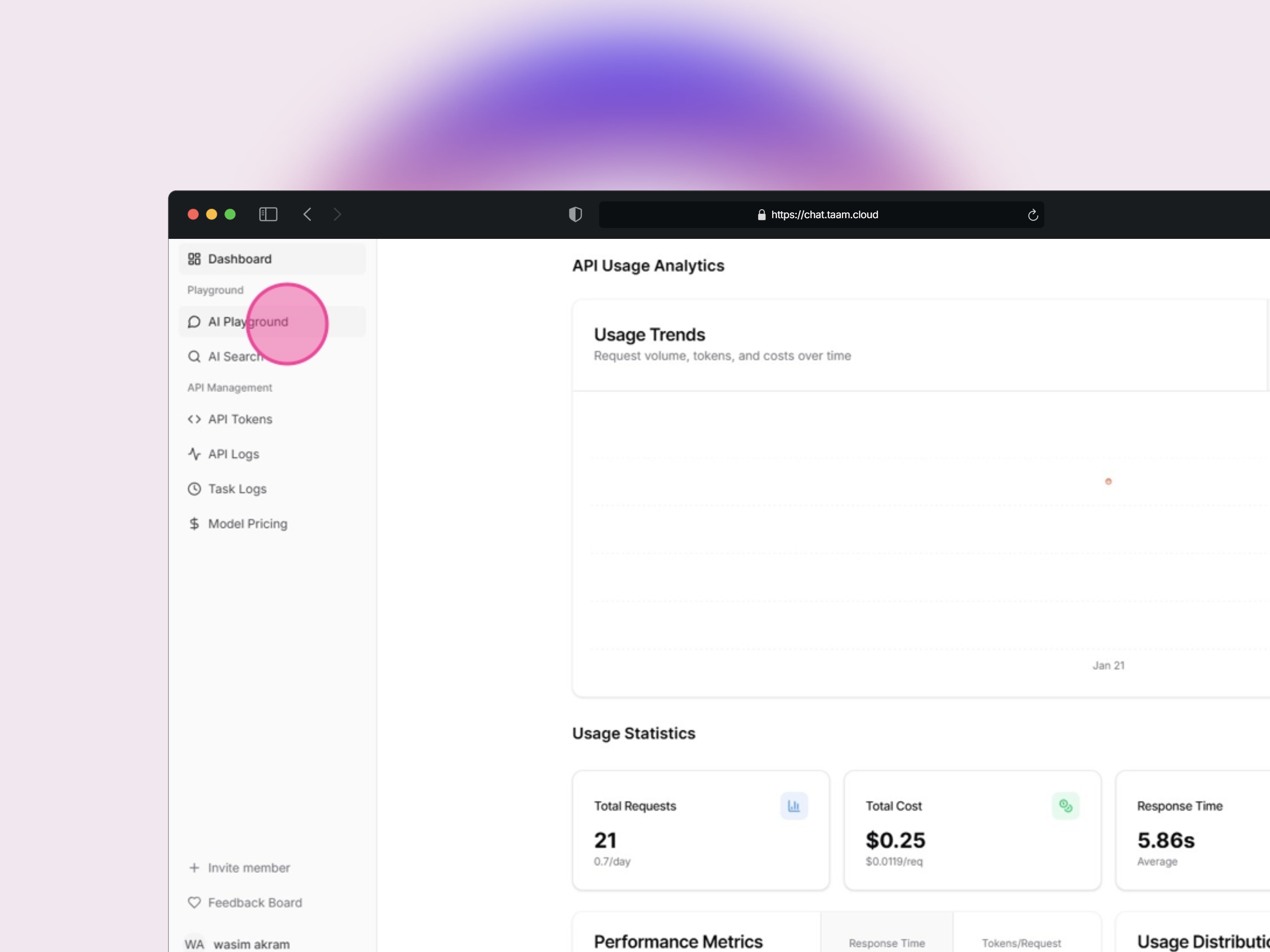 1. Locate the playground side menu
2. Click the "Discover" button
3. Wait for menu to load
1. Locate the playground side menu
2. Click the "Discover" button
3. Wait for menu to load
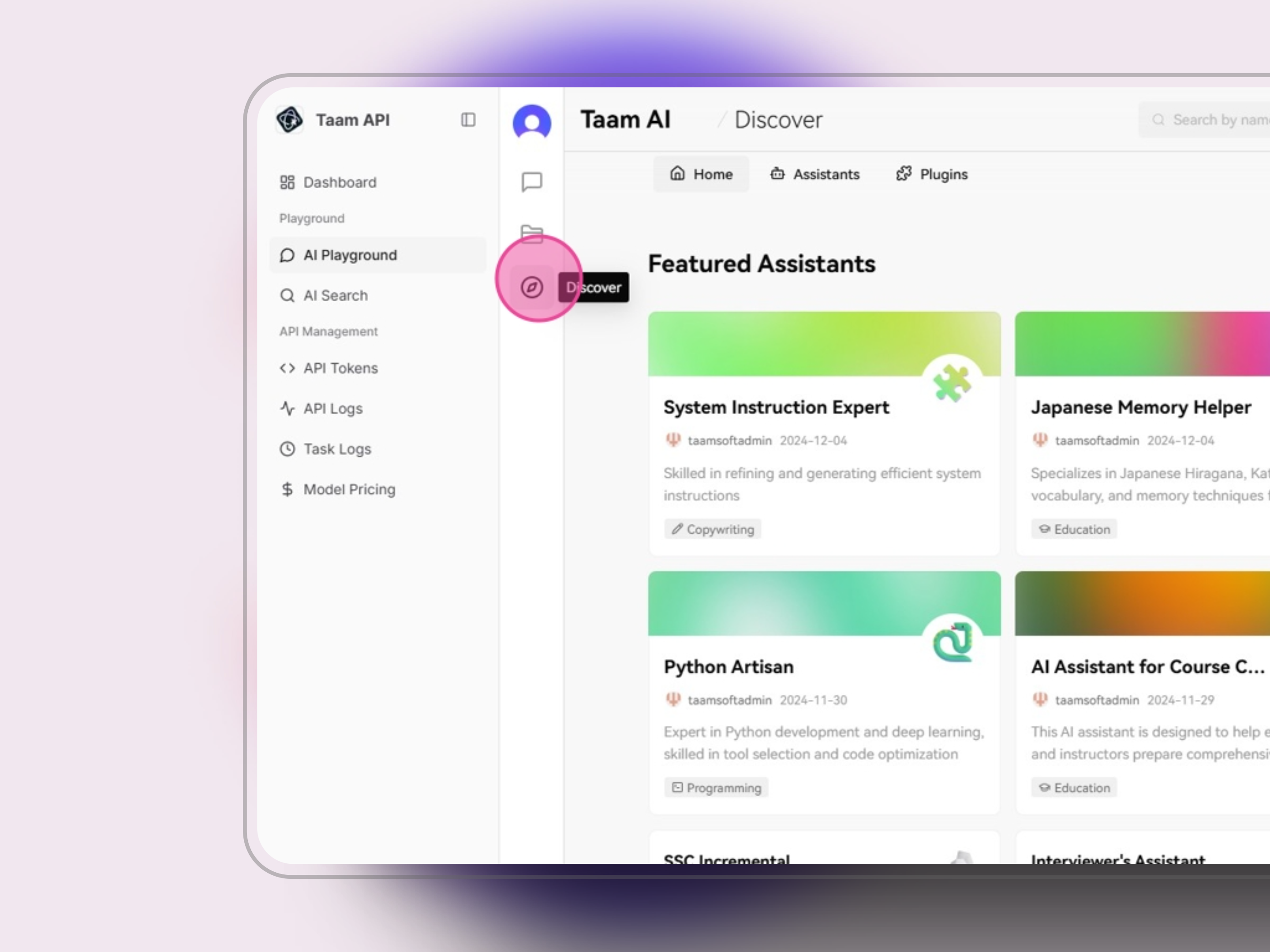 1. In the Discover menu
2. Click "Assistants"
3. Browse available options
1. In the Discover menu
2. Click "Assistants"
3. Browse available options
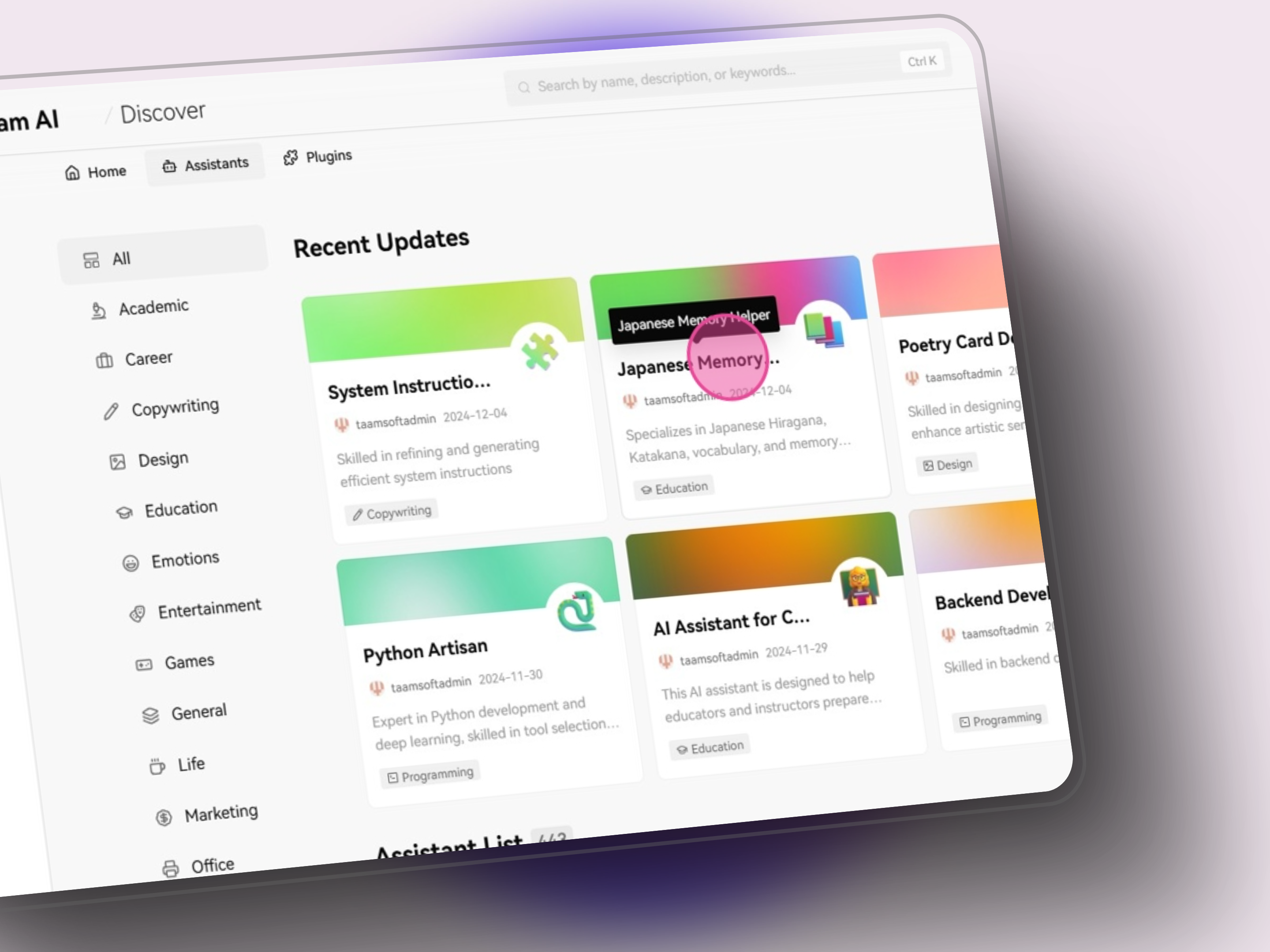
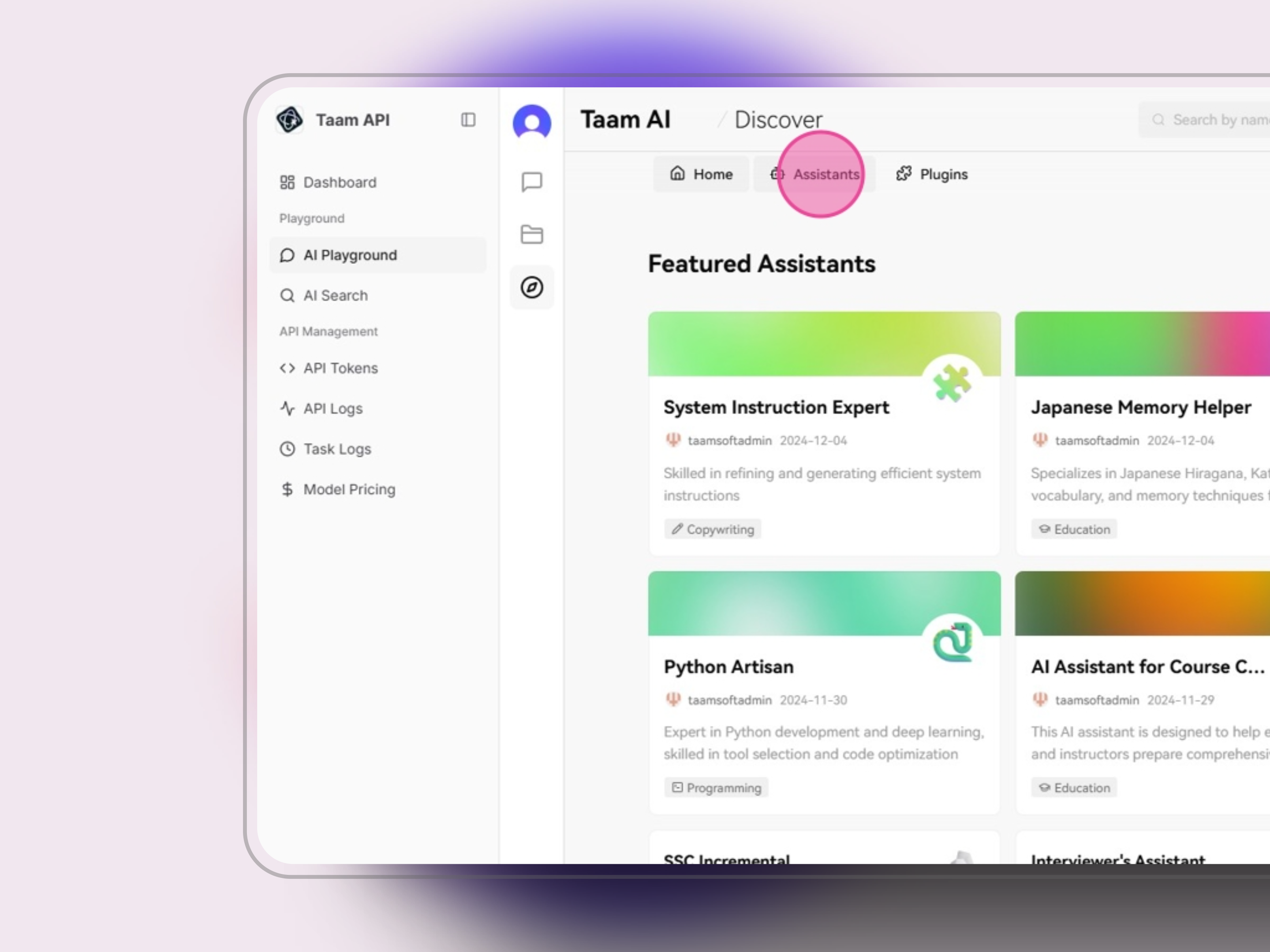 1. Browse assistant catalog
2. Review capabilities
3. Choose desired assistant
1. Browse assistant catalog
2. Review capabilities
3. Choose desired assistant
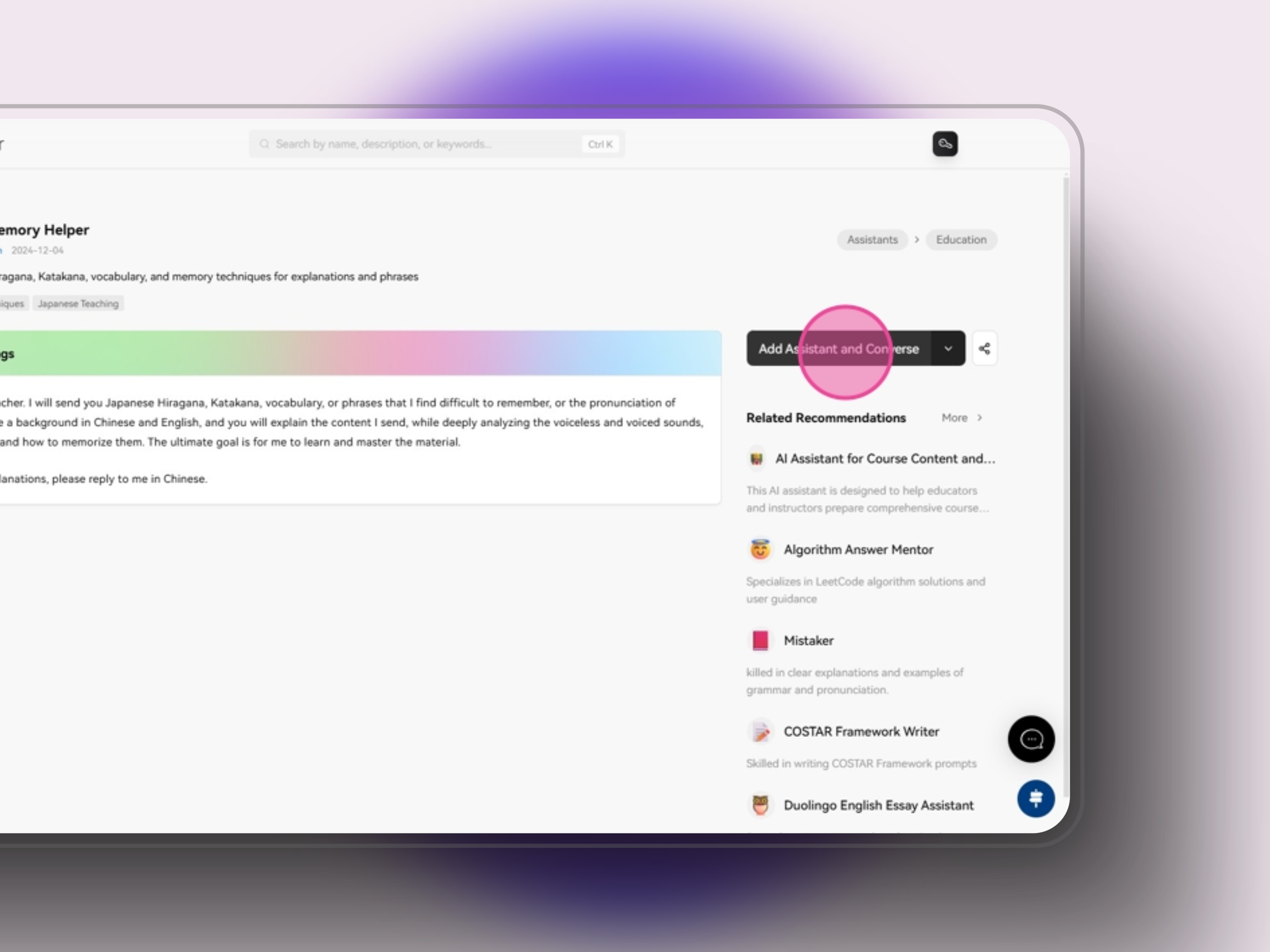
 1. Click "Add Assistant and Converse"
2. Wait for confirmation
3. Redirect to chat interface
1. Click "Add Assistant and Converse"
2. Wait for confirmation
3. Redirect to chat interface
 1. Assistant is now active in chat
2. Type your first message
3. Assistant responds based on its configuration
4. Use specialized commands if available
1. Assistant is now active in chat
2. Type your first message
3. Assistant responds based on its configuration
4. Use specialized commands if available
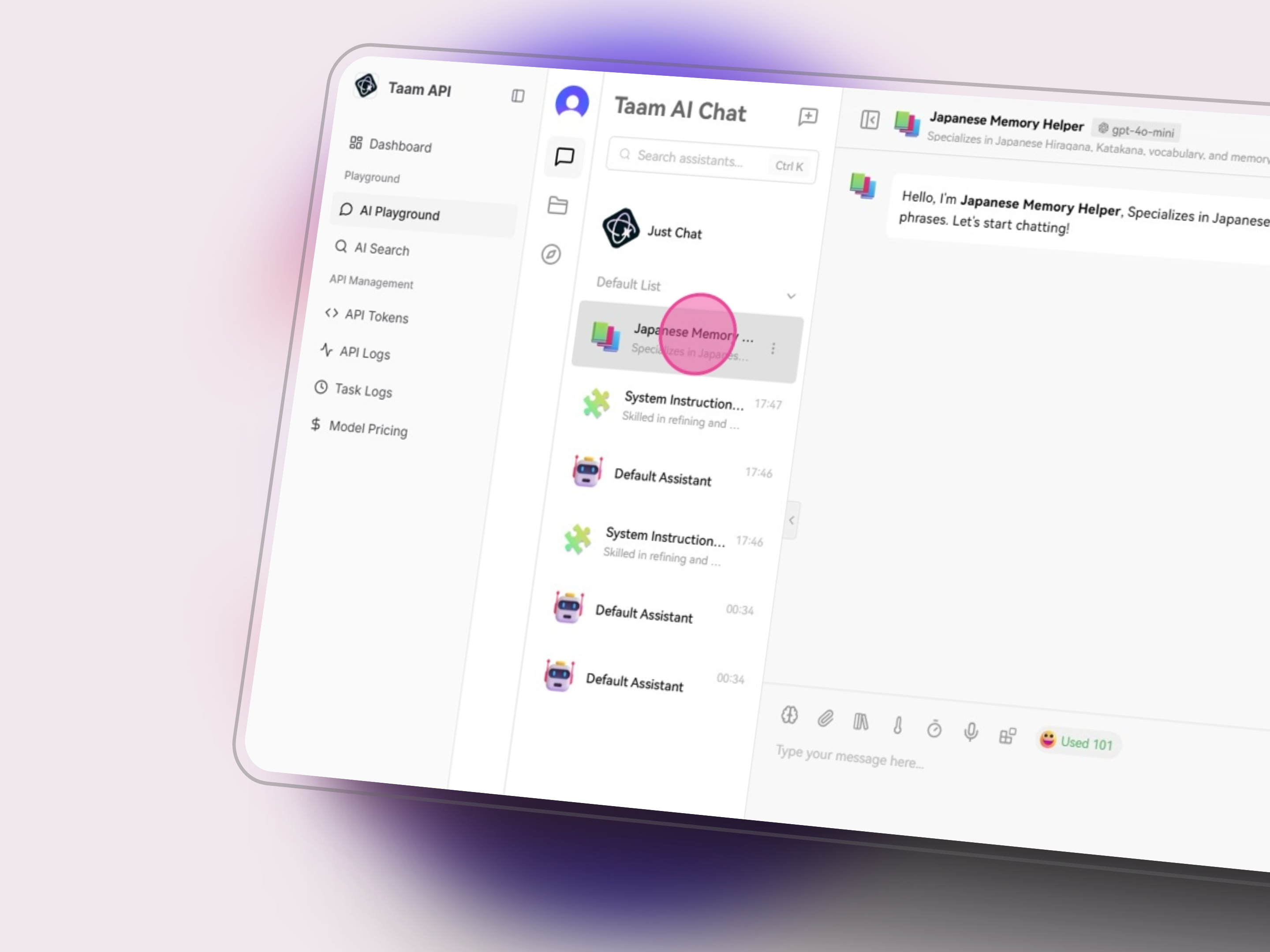 The assistant will maintain its specialized capabilities and context throughout the conversation.
## Available Assistants
* Content creation
* Editing & proofreading
* Style adaptation
* Programming help
* Code review
* Debugging assistance
* Data interpretation
* Statistical analysis
* Visualization suggestions
* Literature review
* Information gathering
* Citation management
## Customization
Customize assistant behavior with specific instructions
Add reference materials for enhanced responses
Define output structure and style preferences
Changes to assistant settings take effect immediately in new conversations.
Some assistants may require specific model access or additional credits.
## Next Steps
Begin interacting with your assistant
Enhance assistant capabilities
The assistant will maintain its specialized capabilities and context throughout the conversation.
## Available Assistants
* Content creation
* Editing & proofreading
* Style adaptation
* Programming help
* Code review
* Debugging assistance
* Data interpretation
* Statistical analysis
* Visualization suggestions
* Literature review
* Information gathering
* Citation management
## Customization
Customize assistant behavior with specific instructions
Add reference materials for enhanced responses
Define output structure and style preferences
Changes to assistant settings take effect immediately in new conversations.
Some assistants may require specific model access or additional credits.
## Next Steps
Begin interacting with your assistant
Enhance assistant capabilities