> ## Documentation Index
> Fetch the complete documentation index at: https://docs.gately.ai/llms.txt
> Use this file to discover all available pages before exploring further.
# Chat Playground
> Interactive environment for testing and experimenting with LLM models
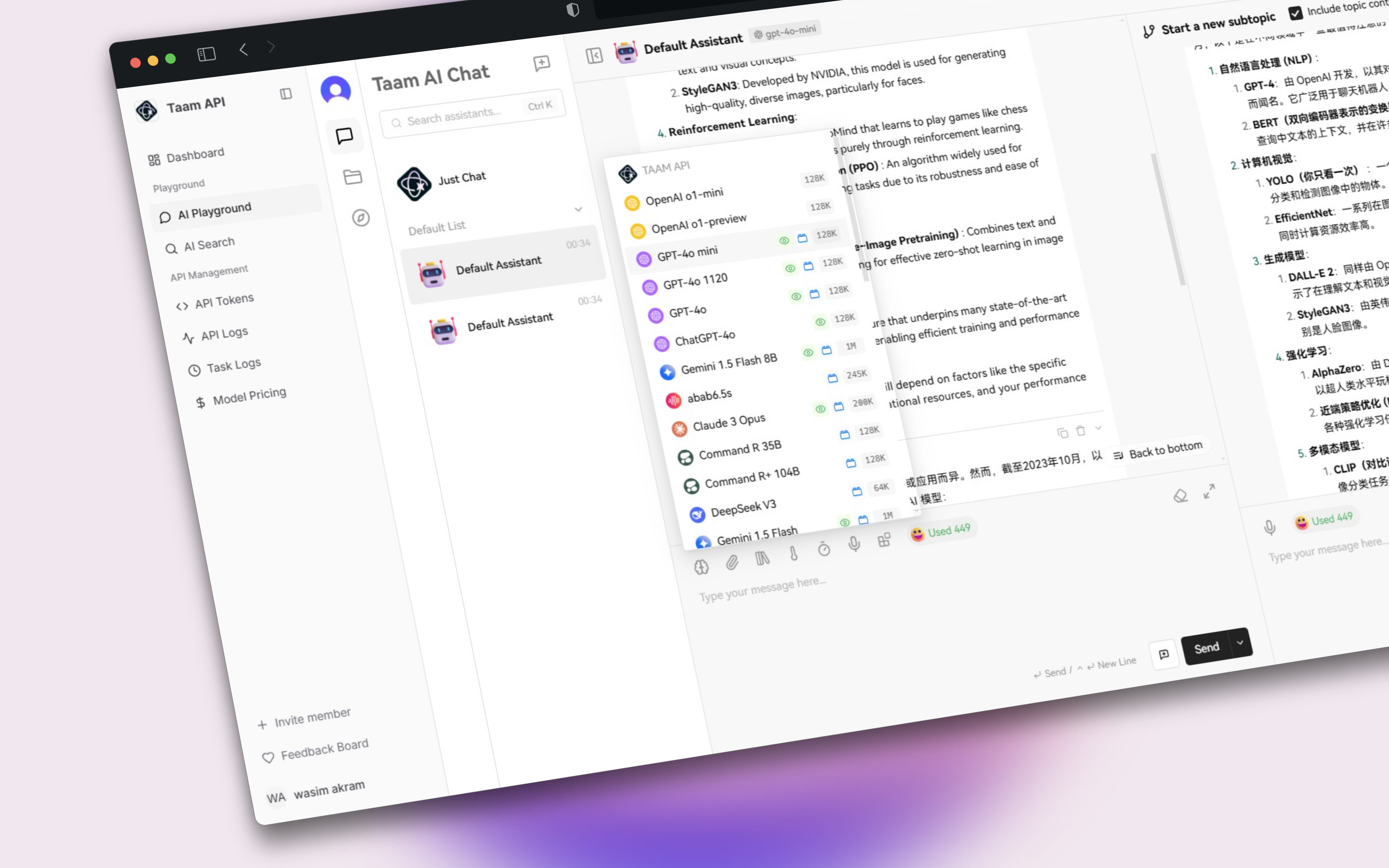 ## Overview
The Chat Playground provides an interactive environment to test different LLM models and fine-tune their parameters for optimal results.
## Interface Components
Choose from available models:
* GPT-4 Turbo
* Claude 3
* Gemini Pro
* Custom Models
## Overview
The Chat Playground provides an interactive environment to test different LLM models and fine-tune their parameters for optimal results.
## Interface Components
Choose from available models:
* GPT-4 Turbo
* Claude 3
* Gemini Pro
* Custom Models
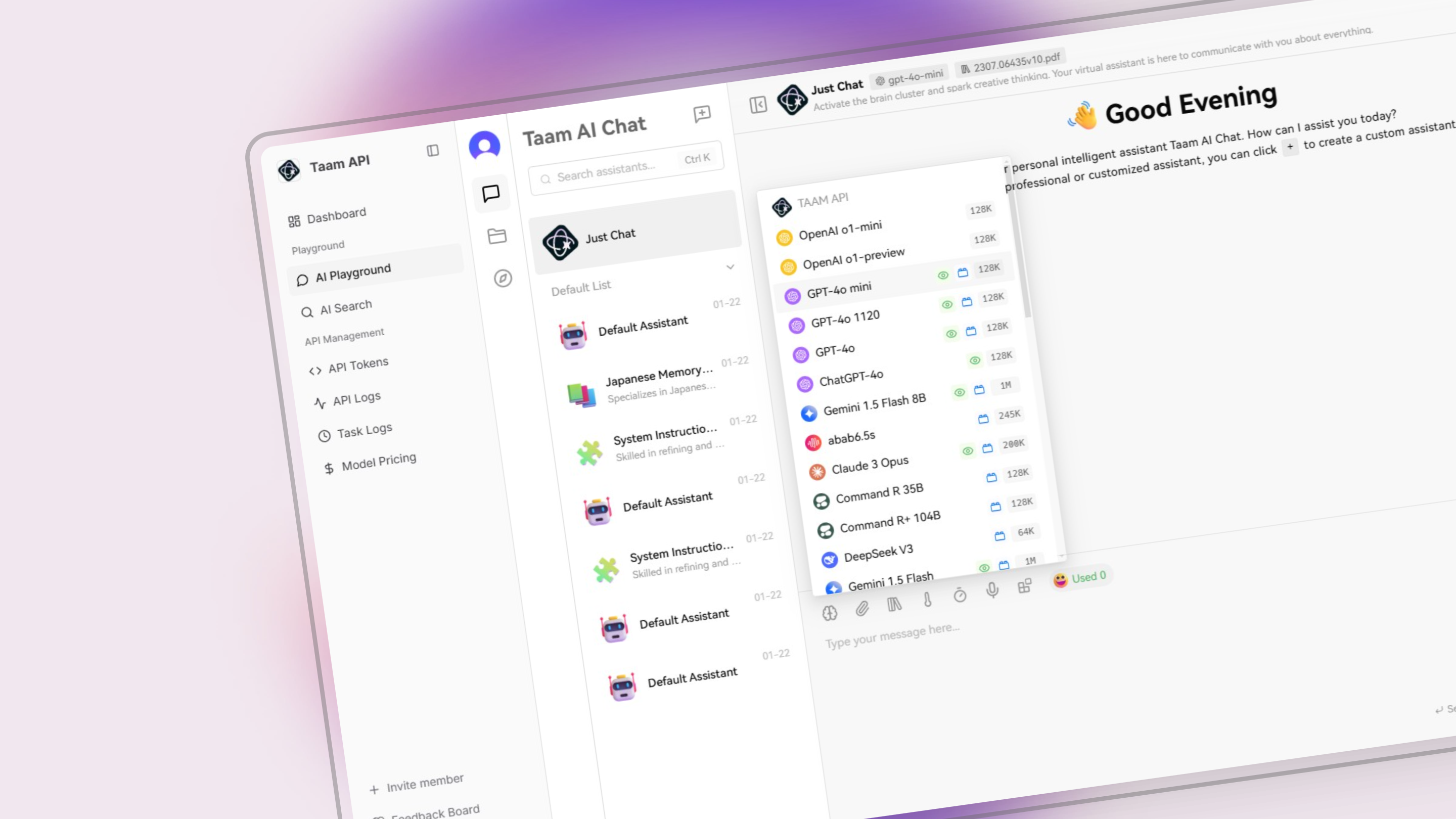 Adjust model behavior:
* Temperature
* Max tokens
* Top P
* Frequency penalty
* Presence penalty
Set the context and behavior instructions for the AI model
## Using the Playground
1. Choose your preferred model
2. Review model capabilities
3. Check credit consumption rate
1. Adjust temperature for creativity
2. Set maximum response length
3. Fine-tune other parameters
1. Enter your prompt
2. View real-time responses
3. Iterate and refine
## Features
Save successful prompts for future use
Download conversations and settings
Collaborate with team members
View API calls for implementation
## Code Generation
```python theme={null}
# Example API call matching playground settings
from openai import OpenAI
client = OpenAI(
api_key="your-api-key",
base_url="https://api.gately.ai/v1"
)
response = client.chat.completions.create(
model="gpt-4-turbo",
messages=[
{"role": "system", "content": "You are a helpful assistant."},
{"role": "user", "content": "Tell me about AI."}
],
temperature=0.7,
max_tokens=150
)
```
The playground automatically generates API code based on your current settings and prompts.
## Tips & Best Practices
Begin with basic prompts and iterate
Test same prompt across models
Track successful configurations
Remember that playground usage consumes credits according to the selected model's pricing.
Adjust model behavior:
* Temperature
* Max tokens
* Top P
* Frequency penalty
* Presence penalty
Set the context and behavior instructions for the AI model
## Using the Playground
1. Choose your preferred model
2. Review model capabilities
3. Check credit consumption rate
1. Adjust temperature for creativity
2. Set maximum response length
3. Fine-tune other parameters
1. Enter your prompt
2. View real-time responses
3. Iterate and refine
## Features
Save successful prompts for future use
Download conversations and settings
Collaborate with team members
View API calls for implementation
## Code Generation
```python theme={null}
# Example API call matching playground settings
from openai import OpenAI
client = OpenAI(
api_key="your-api-key",
base_url="https://api.gately.ai/v1"
)
response = client.chat.completions.create(
model="gpt-4-turbo",
messages=[
{"role": "system", "content": "You are a helpful assistant."},
{"role": "user", "content": "Tell me about AI."}
],
temperature=0.7,
max_tokens=150
)
```
The playground automatically generates API code based on your current settings and prompts.
## Tips & Best Practices
Begin with basic prompts and iterate
Test same prompt across models
Track successful configurations
Remember that playground usage consumes credits according to the selected model's pricing.