> ## Documentation Index
> Fetch the complete documentation index at: https://docs.gately.ai/llms.txt
> Use this file to discover all available pages before exploring further.
# Getting Started
> Step-by-step guide to connect your Gately AI account with the AI Playground
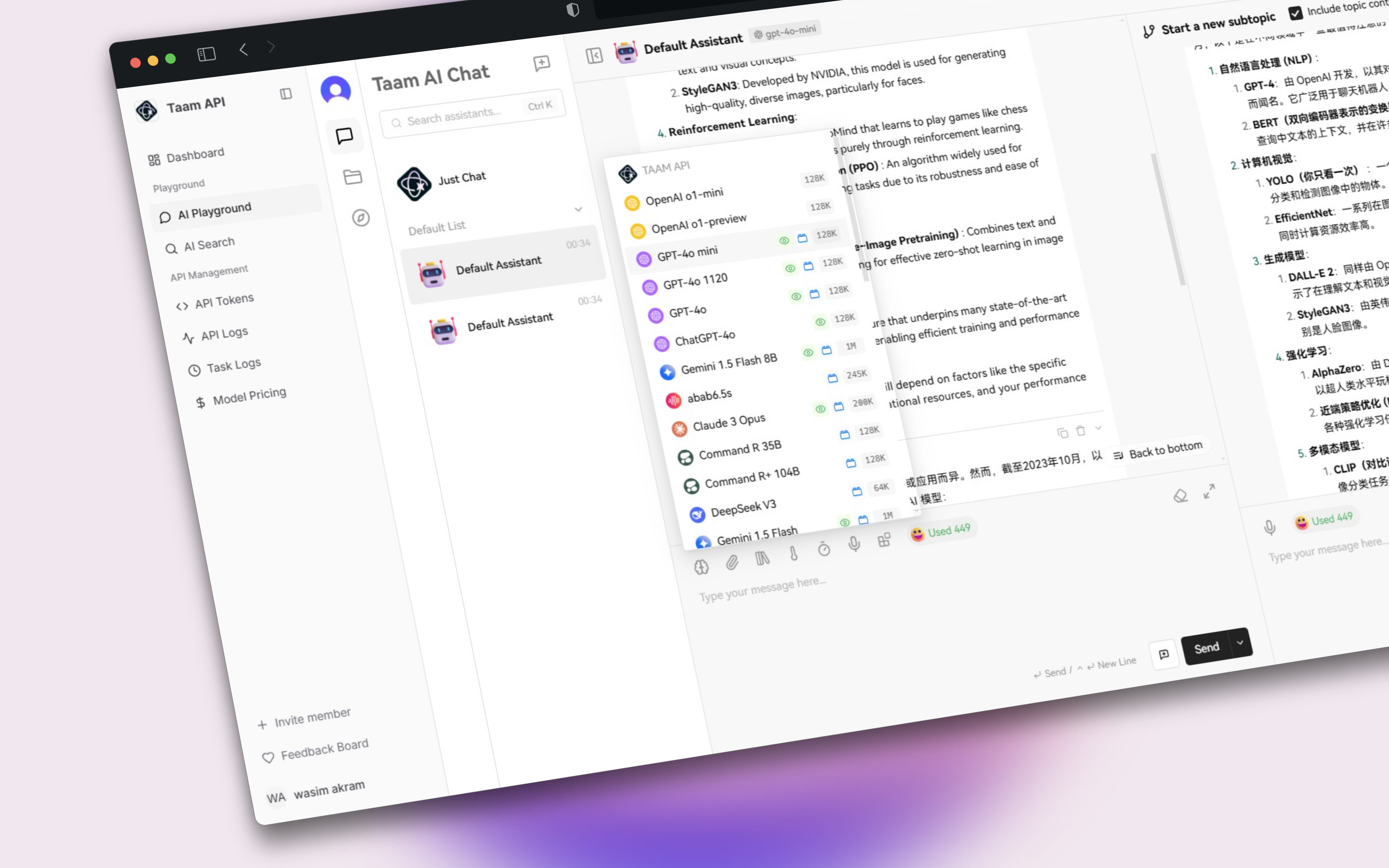 ## Account Connection Steps
1. Open your web browser
2. Visit [Gately AI Dashboard](https://app.gately.ai/dashboard/home)
3. Log in to your account if needed
## Account Connection Steps
1. Open your web browser
2. Visit [Gately AI Dashboard](https://app.gately.ai/dashboard/home)
3. Log in to your account if needed
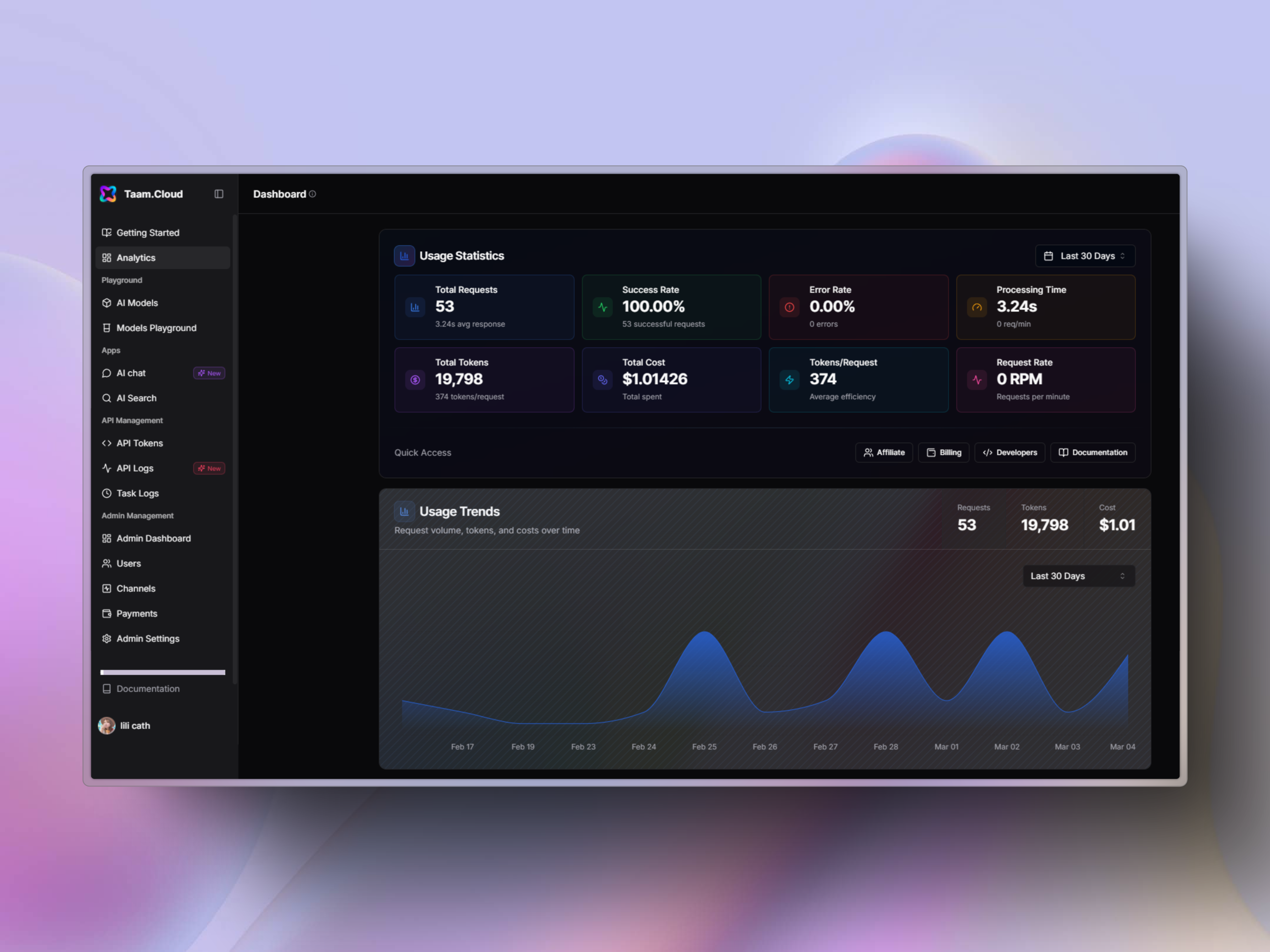 1. Locate the sidebar menu
2. Click on "AI Playground"
3. Wait for the playground interface to load
1. Locate the sidebar menu
2. Click on "AI Playground"
3. Wait for the playground interface to load
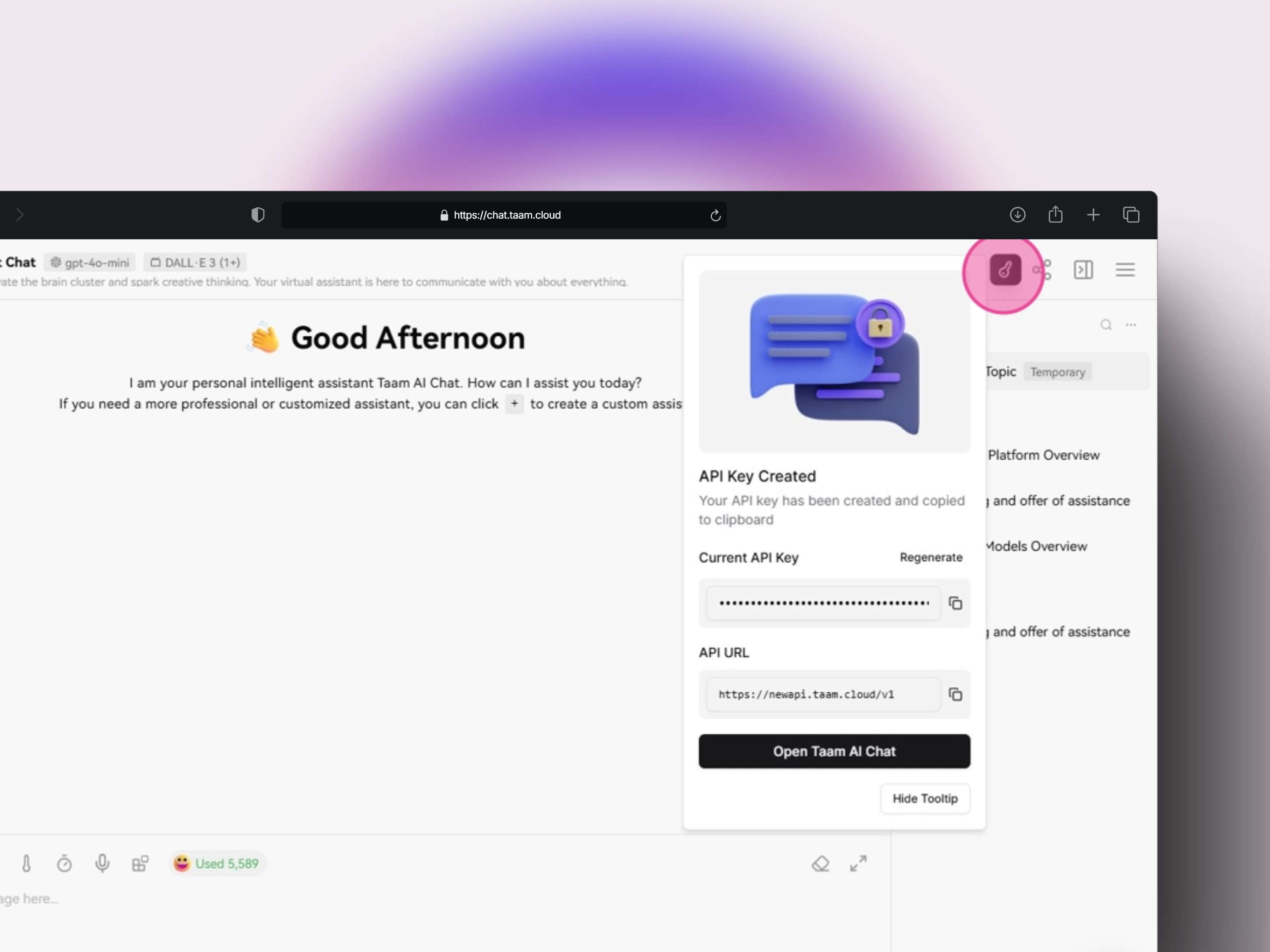
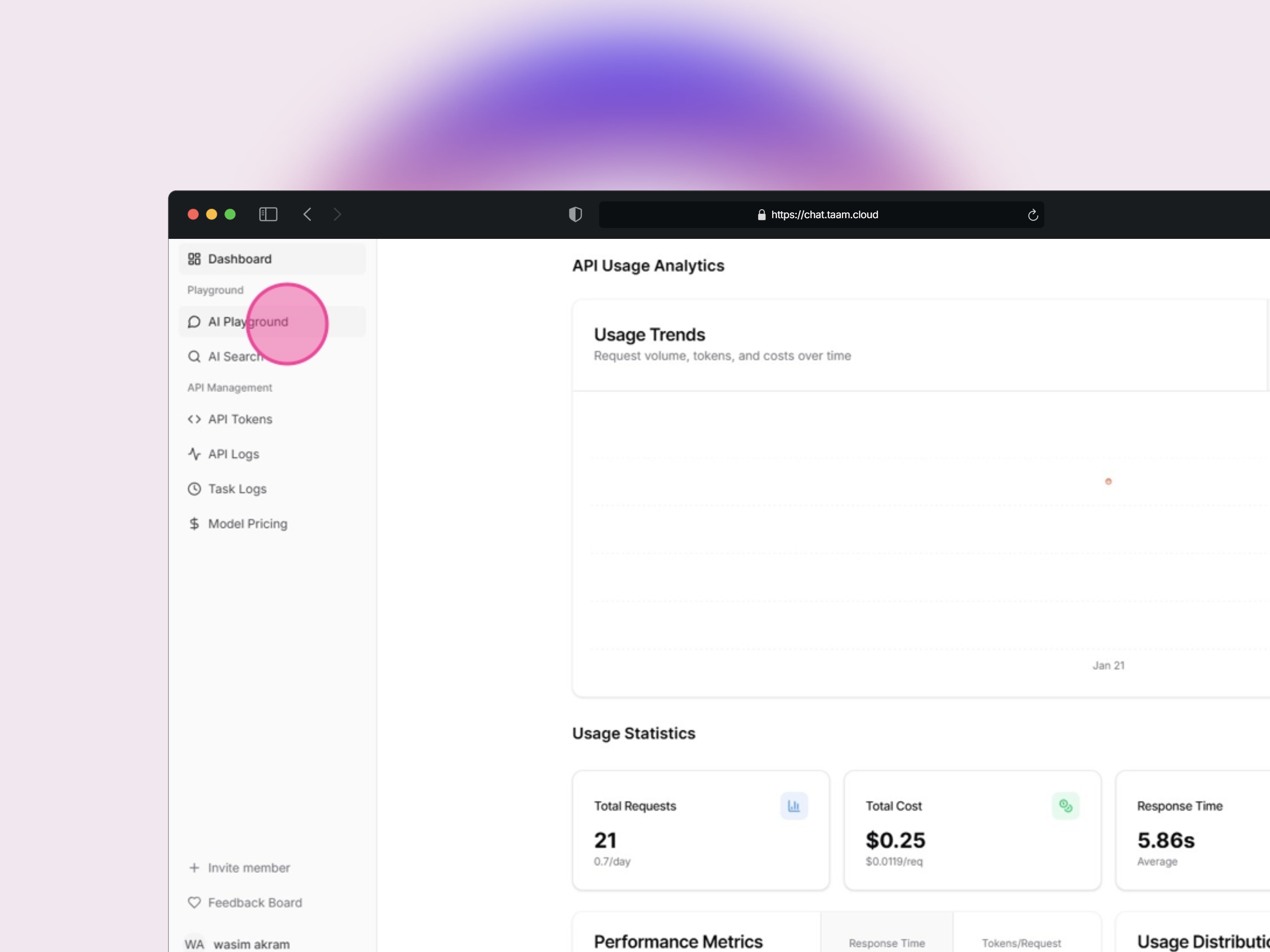 1. Look for the tooltip with action buttons
2. Click "Open Taam AI Chat"
3. A new tab will open for authentication
1. Look for the tooltip with action buttons
2. Click "Open Taam AI Chat"
3. A new tab will open for authentication
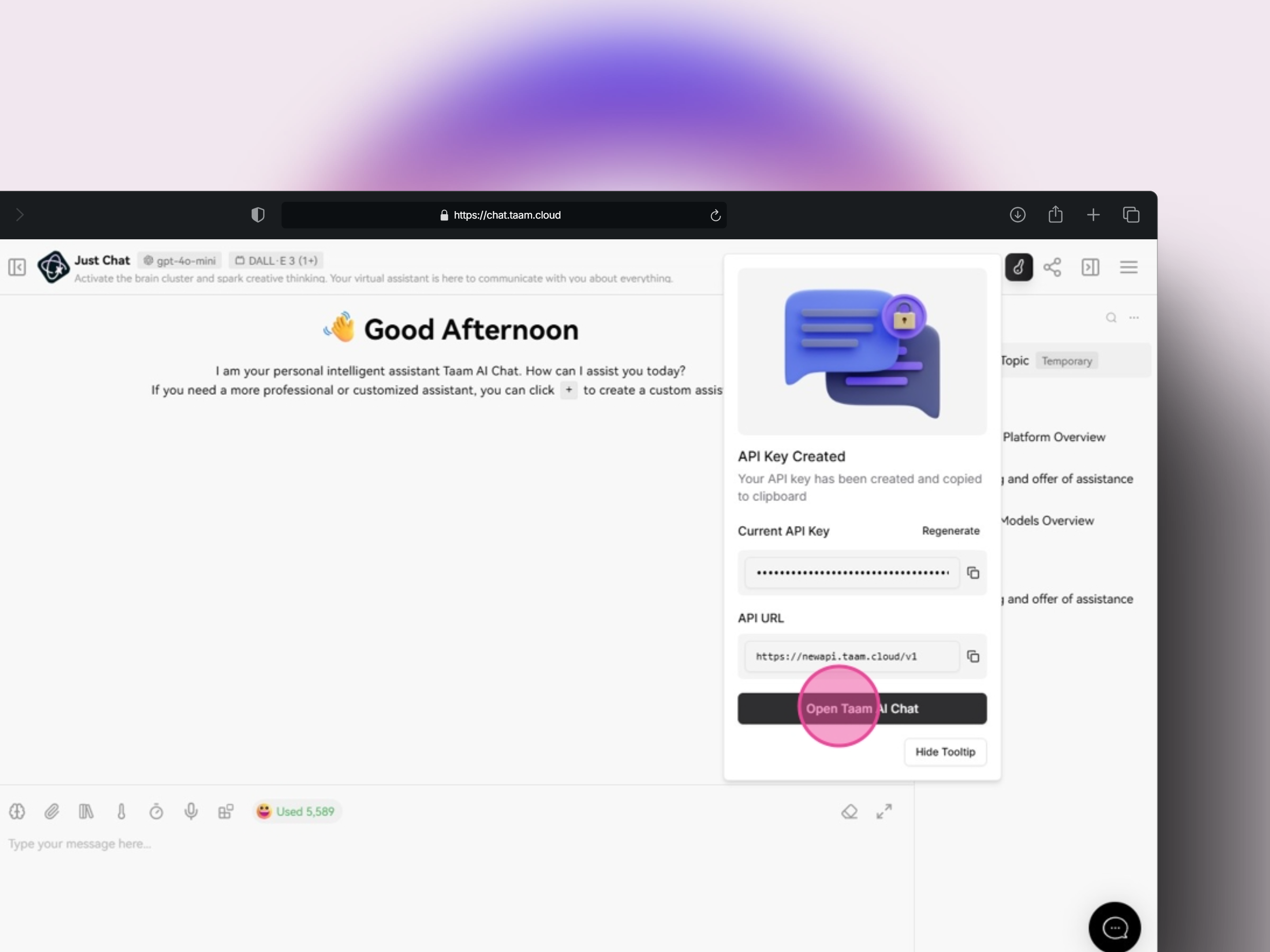 1. Follow authentication prompts
2. Grant necessary permissions
3. Wait for confirmation
1. Go back to the Playground tab
2. Refresh the page
3. Click the tooltip button again
1. Follow authentication prompts
2. Grant necessary permissions
3. Wait for confirmation
1. Go back to the Playground tab
2. Refresh the page
3. Click the tooltip button again
 1. Open Playground Settings
2. Locate API configuration section
3. Prepare to enter credentials
1. Open Playground Settings
2. Locate API configuration section
3. Prepare to enter credentials
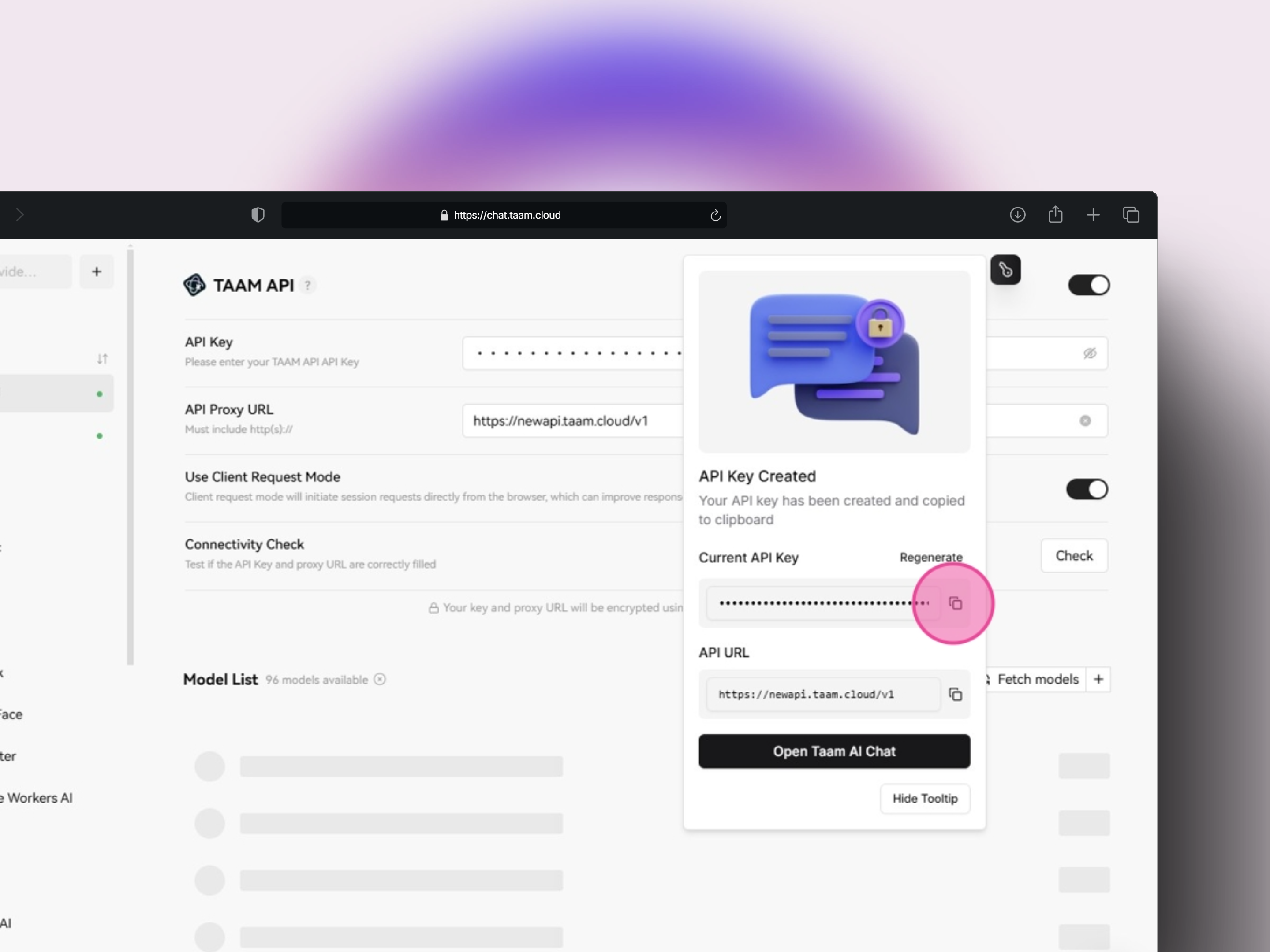 1. Find "Current API Key" field
2. Copy displayed API key
3. Paste into API Key field
1. Find "Current API Key" field
2. Copy displayed API key
3. Paste into API Key field
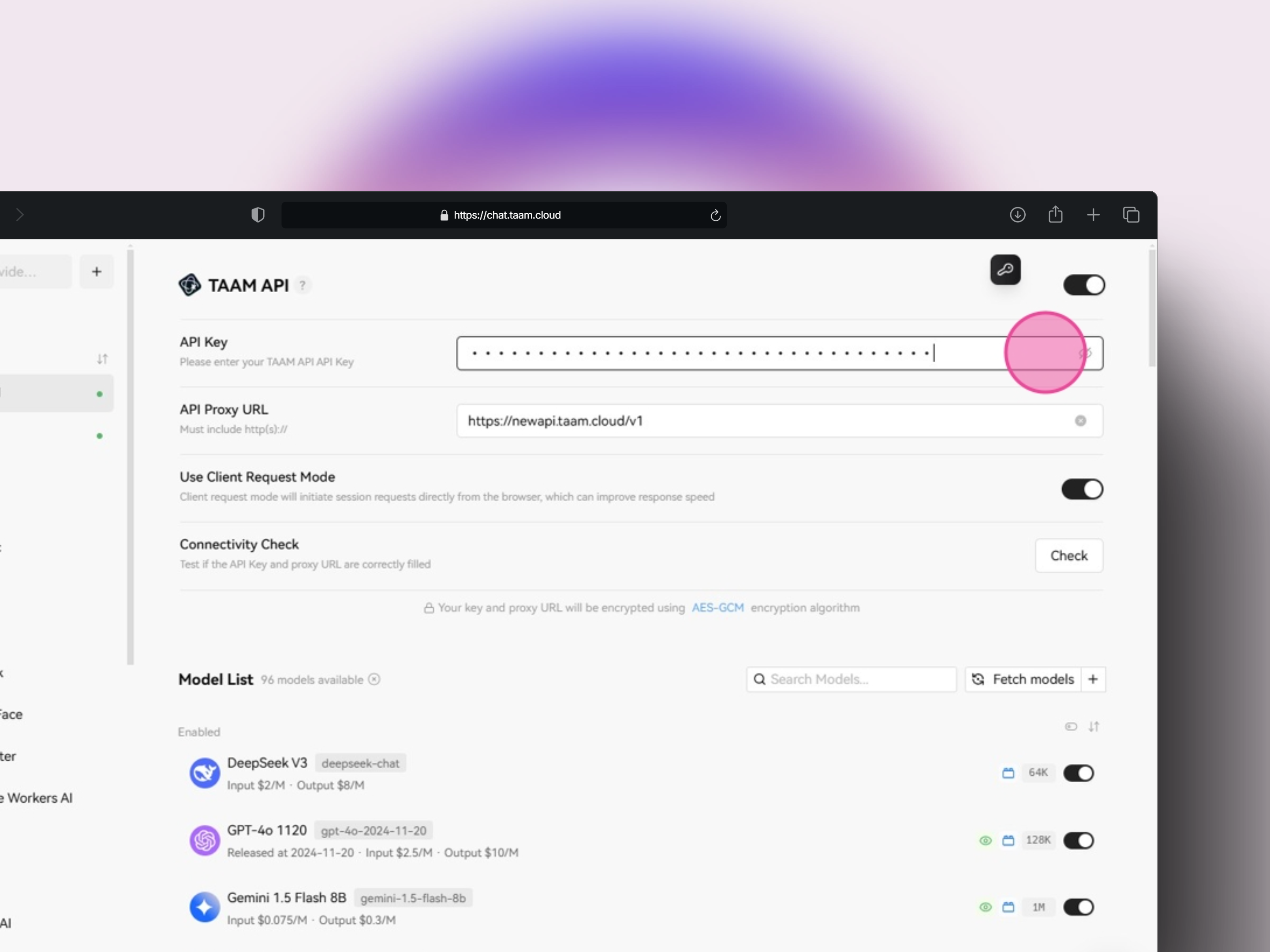 1. Copy base URL: `https://api.gately.ai/v1`
2. Locate "API Proxy URL" field
3. Paste the base URL
1. Copy base URL: `https://api.gately.ai/v1`
2. Locate "API Proxy URL" field
3. Paste the base URL
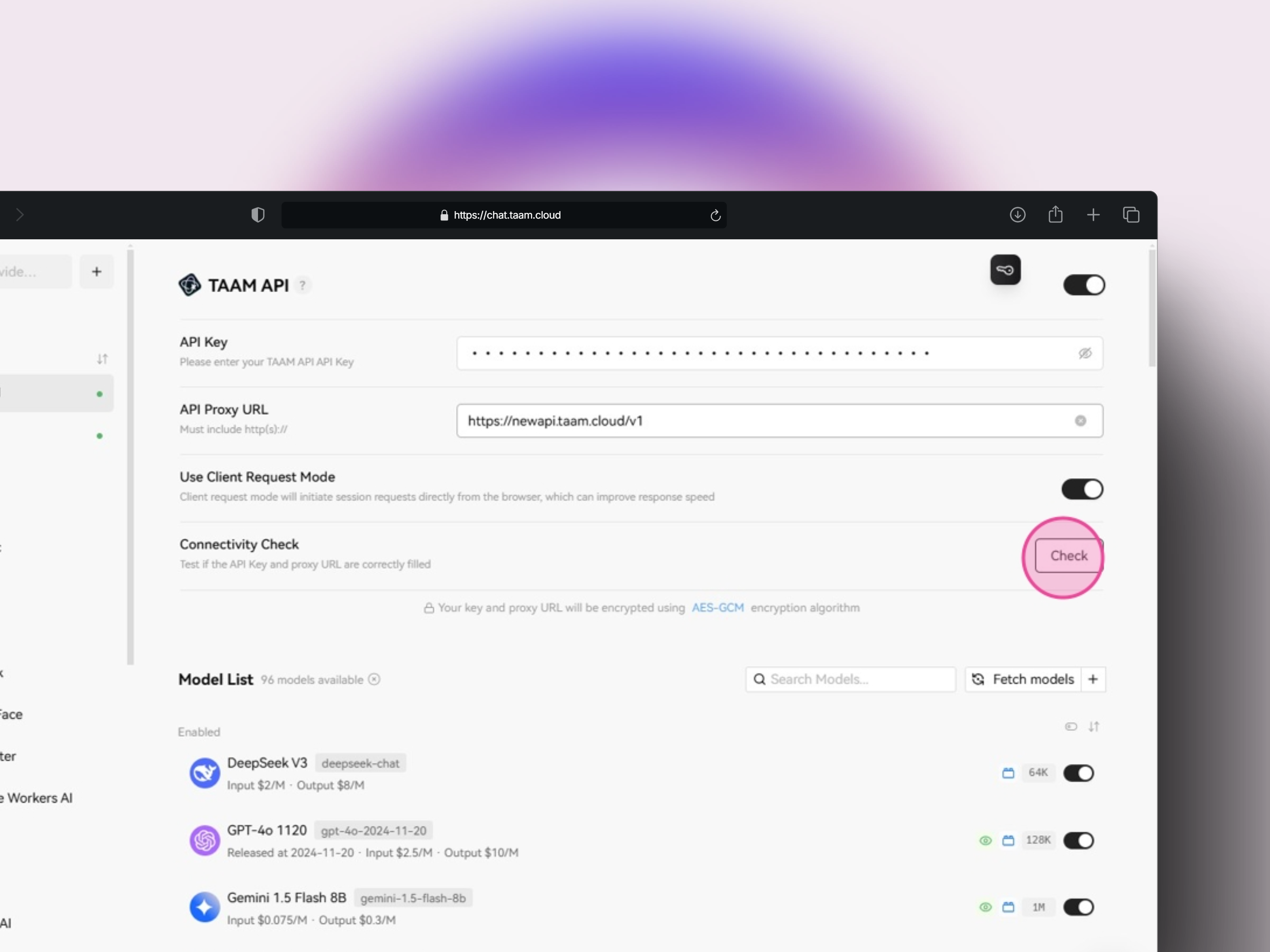
 1. Click "Check" button
2. Wait for verification
3. Confirm successful connection
1. Click "Check" button
2. Wait for verification
3. Confirm successful connection
 ## Next Steps
Start experimenting with different AI models
Learn how to write effective prompts
Remember to keep your API key secure and never share it publicly.
If you encounter any connection issues, try refreshing your API key or contact [support](mailto:support@taam.cloud).
## Next Steps
Start experimenting with different AI models
Learn how to write effective prompts
Remember to keep your API key secure and never share it publicly.
If you encounter any connection issues, try refreshing your API key or contact [support](mailto:support@taam.cloud).