> ## Documentation Index
> Fetch the complete documentation index at: https://docs.gately.ai/llms.txt
> Use this file to discover all available pages before exploring further.
# Knowledge Base
> Enhance AI conversations with custom knowledge and file integration
 ## Overview
Gately AI's knowledge base feature enables intelligent conversations with your uploaded files and custom knowledge sources.
## Creating a Knowledge Base
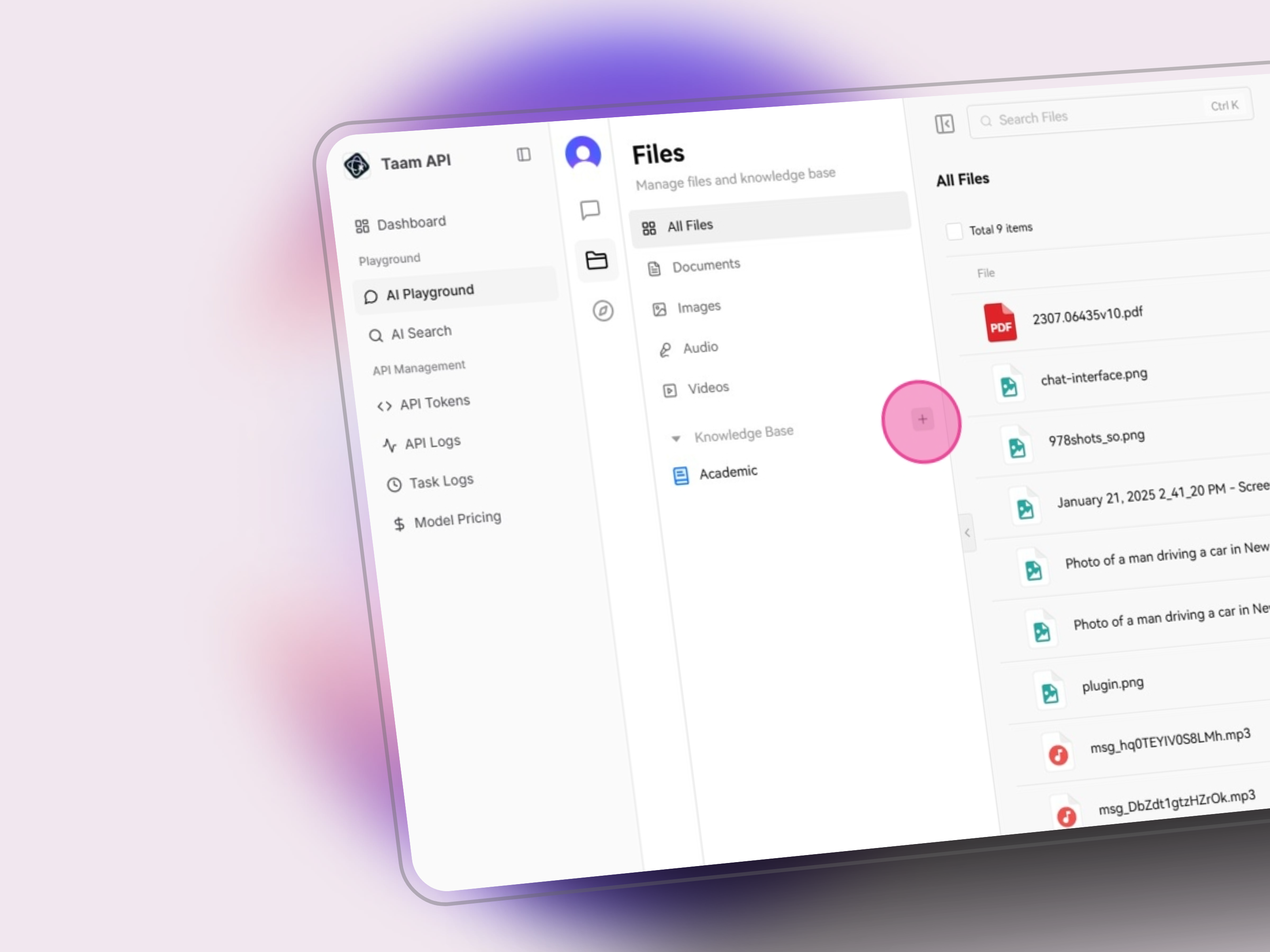
1. Go to [Playground](https://app.gately.ai/dashboard/playground)
2. Click Files icon in the side menu
## Overview
Gately AI's knowledge base feature enables intelligent conversations with your uploaded files and custom knowledge sources.
## Creating a Knowledge Base
1. Go to [Playground](https://app.gately.ai/dashboard/playground)
2. Click Files icon in the side menu
 1. Click the Add icon (+)
2. Select "New Knowledge Base"
1. Click the Add icon (+)
2. Select "New Knowledge Base"
 1. Enter knowledge base name
2. Add description (optional)
3. Click Create button
1. Enter knowledge base name
2. Add description (optional)
3. Click Create button
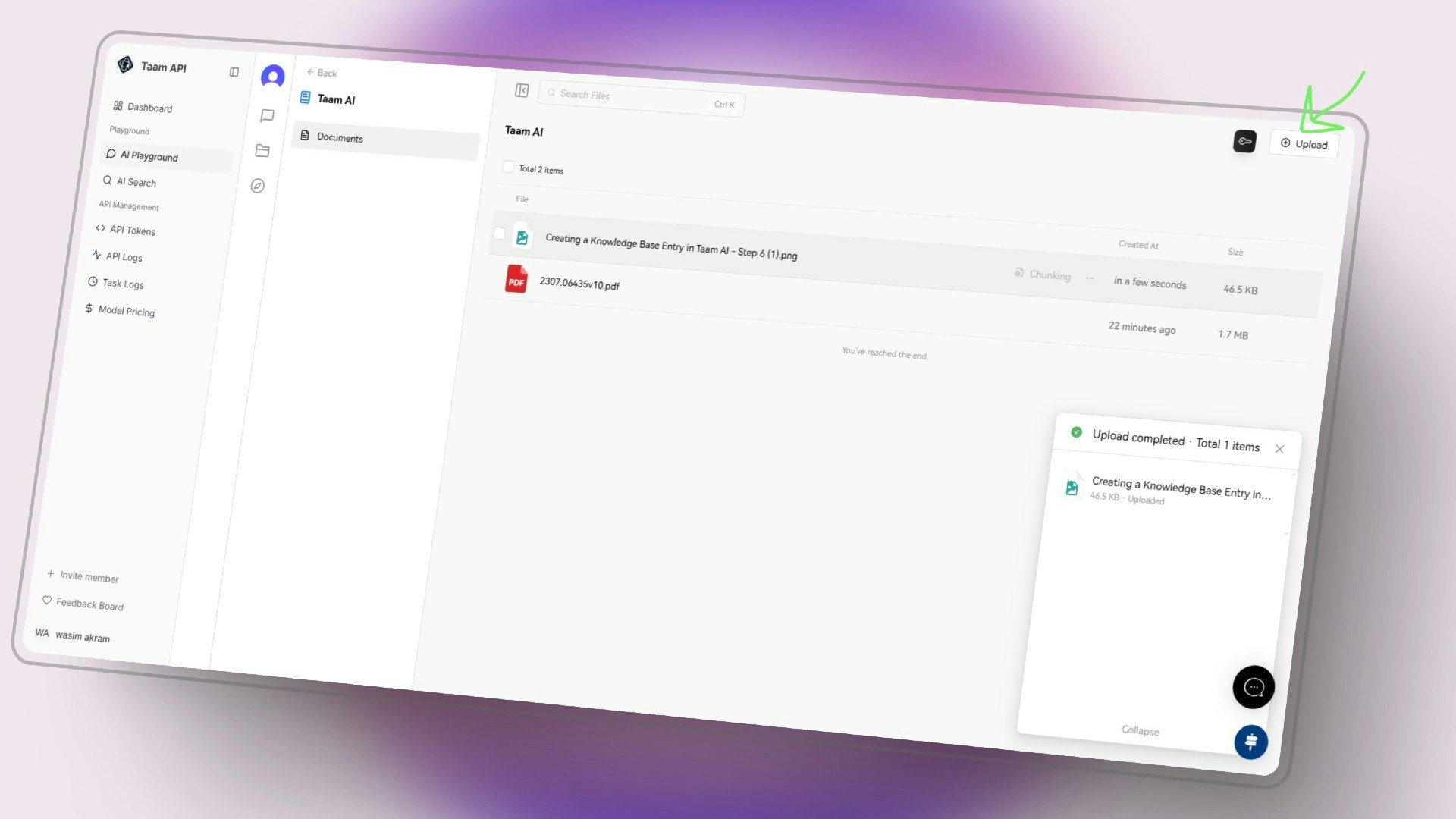
 1. Open the new knowledge base
2. Click Upload or drag files
3. Select files or folders to add
1. Open the new knowledge base
2. Click Upload or drag files
3. Select files or folders to add
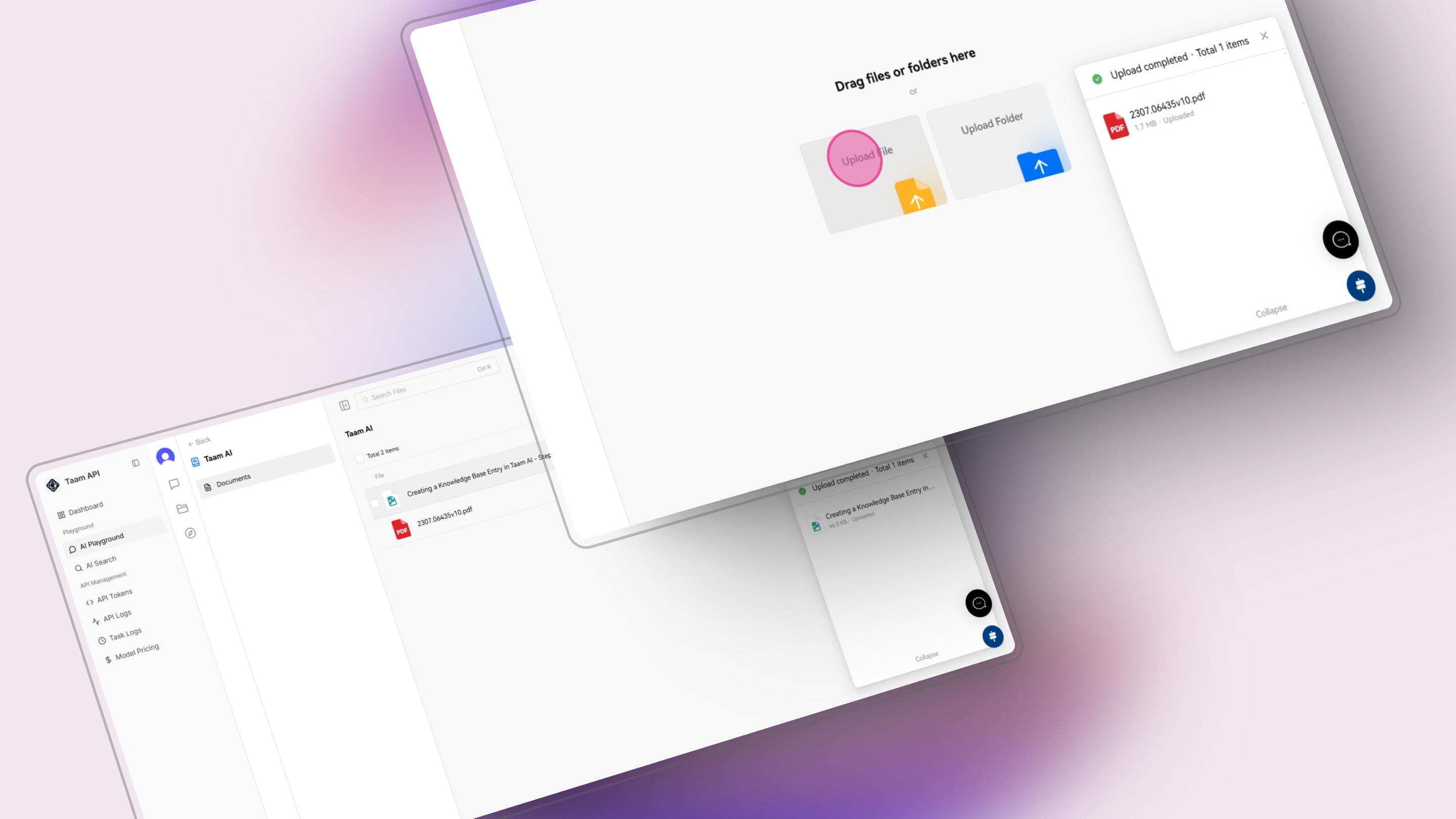
 1. Wait for processing
2. Review uploaded files
3. Check indexing status
1. Wait for processing
2. Review uploaded files
3. Check indexing status
 ## File Management
* PDF
* Word
* Excel
* PowerPoint
* Text files
* Images
* Audio files
* Video files
* Source files
* Documentation
* Configurations
* Multi-select files
* Batch delete
* Copy file links
* Online preview
* File sharing
## File Preview
Preview supported files directly in the interface:
## File Management
* PDF
* Word
* Excel
* PowerPoint
* Text files
* Images
* Audio files
* Video files
* Source files
* Documentation
* Configurations
* Multi-select files
* Batch delete
* Copy file links
* Online preview
* File sharing
## File Preview
Preview supported files directly in the interface:
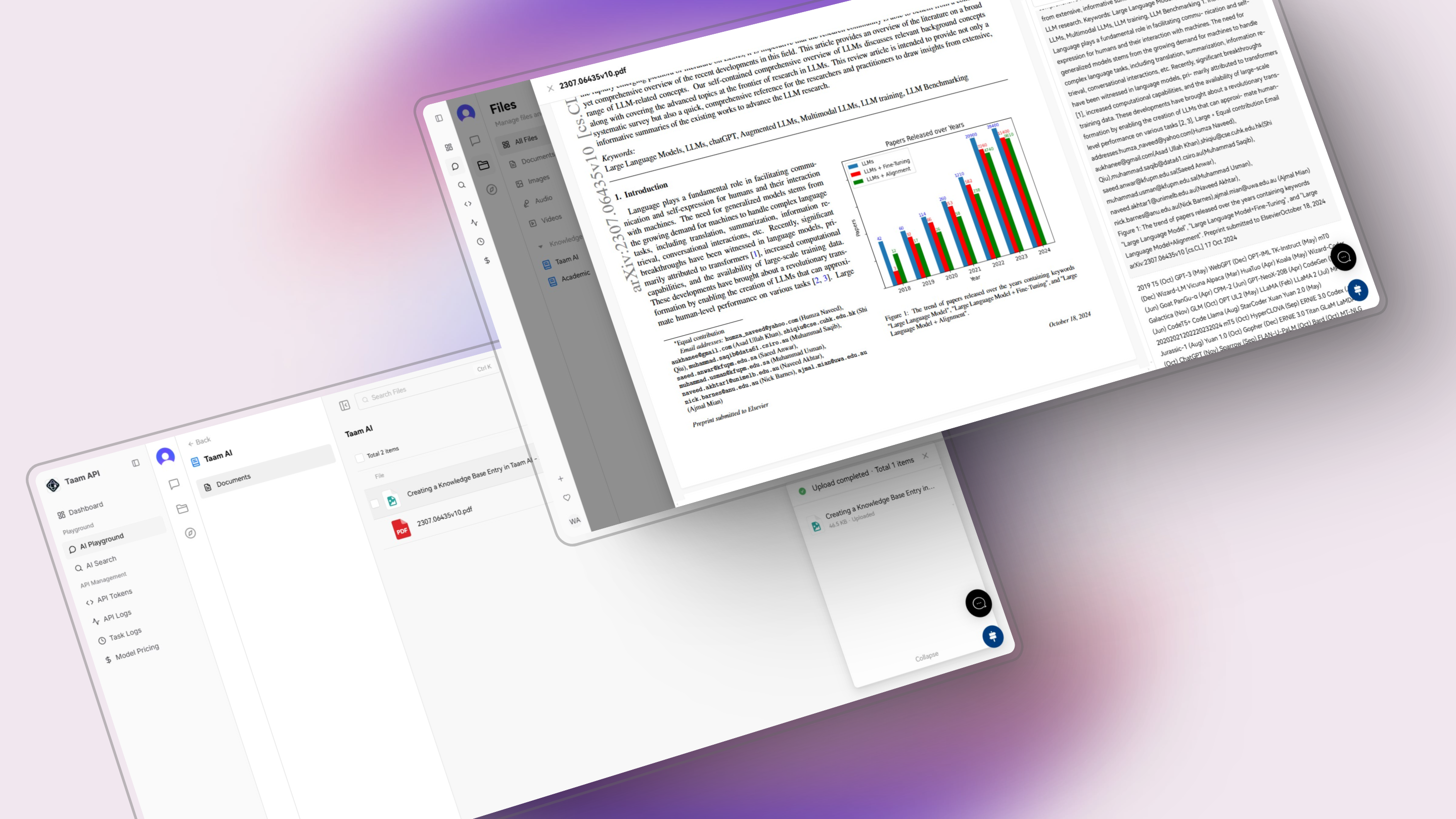 * PDF documents
* Excel spreadsheets
* Word documents
* PowerPoint presentations
* Plain text files
## File Processing
Documents are split into segments for optimal processing:
* Semantic boundaries
* Size optimization
* Structure preservation
Text segments are converted to vector embeddings:
* Semantic encoding
* Search optimization
* Context preservation
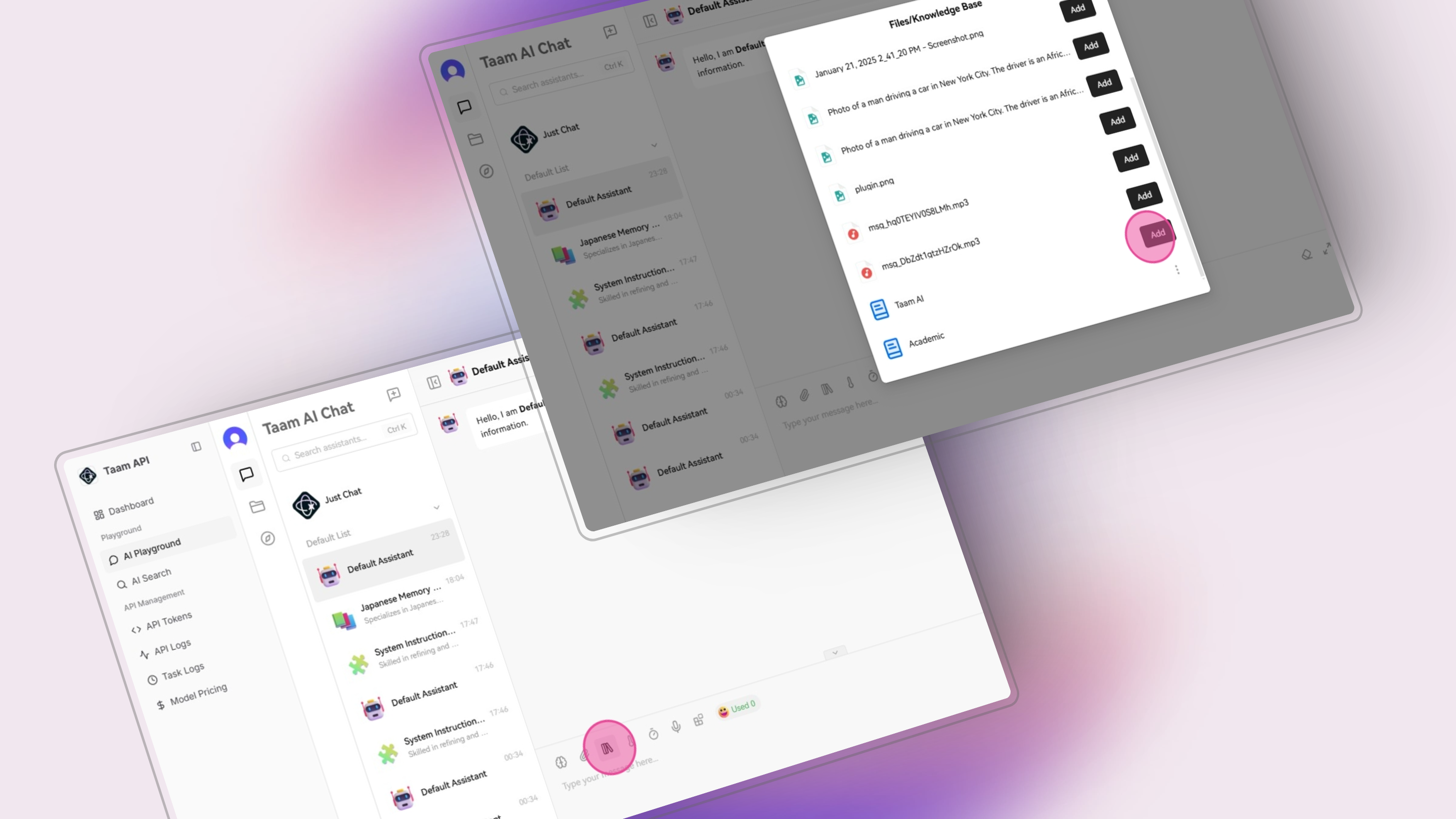
## Using Your Knowledge Base
1. Return to chat interface
2. Click knowledge base icon
3. Select your base from list
1. Type your questions
2. AI references your files
3. Get contextual responses
The AI will now include information from your knowledge base when responding to relevant queries.
## Future Enhancements
* Speech-to-text conversion
* Audio content analysis
* Transcript generation
* Image content extraction
* Visual context analysis
* Multi-modal integration
Knowledge base processing may affect credit consumption based on file size and complexity.
## Next Steps
Start adding your documents
Set up your knowledge base
Test with your content
* PDF documents
* Excel spreadsheets
* Word documents
* PowerPoint presentations
* Plain text files
## File Processing
Documents are split into segments for optimal processing:
* Semantic boundaries
* Size optimization
* Structure preservation
Text segments are converted to vector embeddings:
* Semantic encoding
* Search optimization
* Context preservation
## Using Your Knowledge Base
1. Return to chat interface
2. Click knowledge base icon
3. Select your base from list
1. Type your questions
2. AI references your files
3. Get contextual responses
The AI will now include information from your knowledge base when responding to relevant queries.
## Future Enhancements
* Speech-to-text conversion
* Audio content analysis
* Transcript generation
* Image content extraction
* Visual context analysis
* Multi-modal integration
Knowledge base processing may affect credit consumption based on file size and complexity.
## Next Steps
Start adding your documents
Set up your knowledge base
Test with your content