> ## Documentation Index
> Fetch the complete documentation index at: https://docs.gately.ai/llms.txt
> Use this file to discover all available pages before exploring further.
# AI Plugins
> Extend AI capabilities with specialized plugins
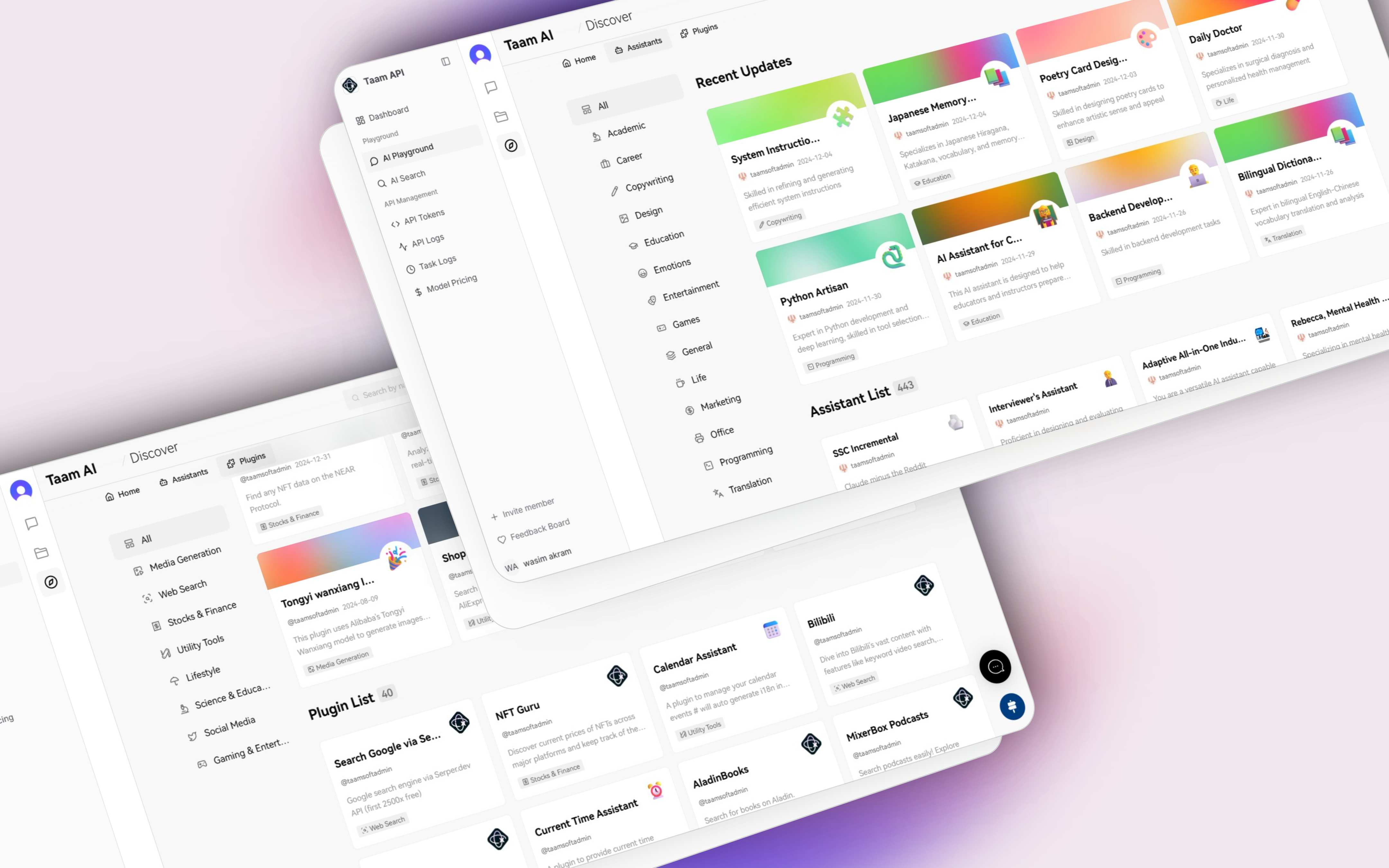 ## Plugin System Overview
Plugins enhance AI assistants with additional capabilities through simple integration.
## Accessing Plugins
1. Navigate to the session toolbar
2. Click "Extension Tools"
3. Select "Plugin Store"
## Plugin System Overview
Plugins enhance AI assistants with additional capabilities through simple integration.
## Accessing Plugins
1. Navigate to the session toolbar
2. Click "Extension Tools"
3. Select "Plugin Store"
 1. Browse available plugins
2. Click install button
3. Accept permissions if required
1. Browse available plugins
2. Click install button
3. Accept permissions if required
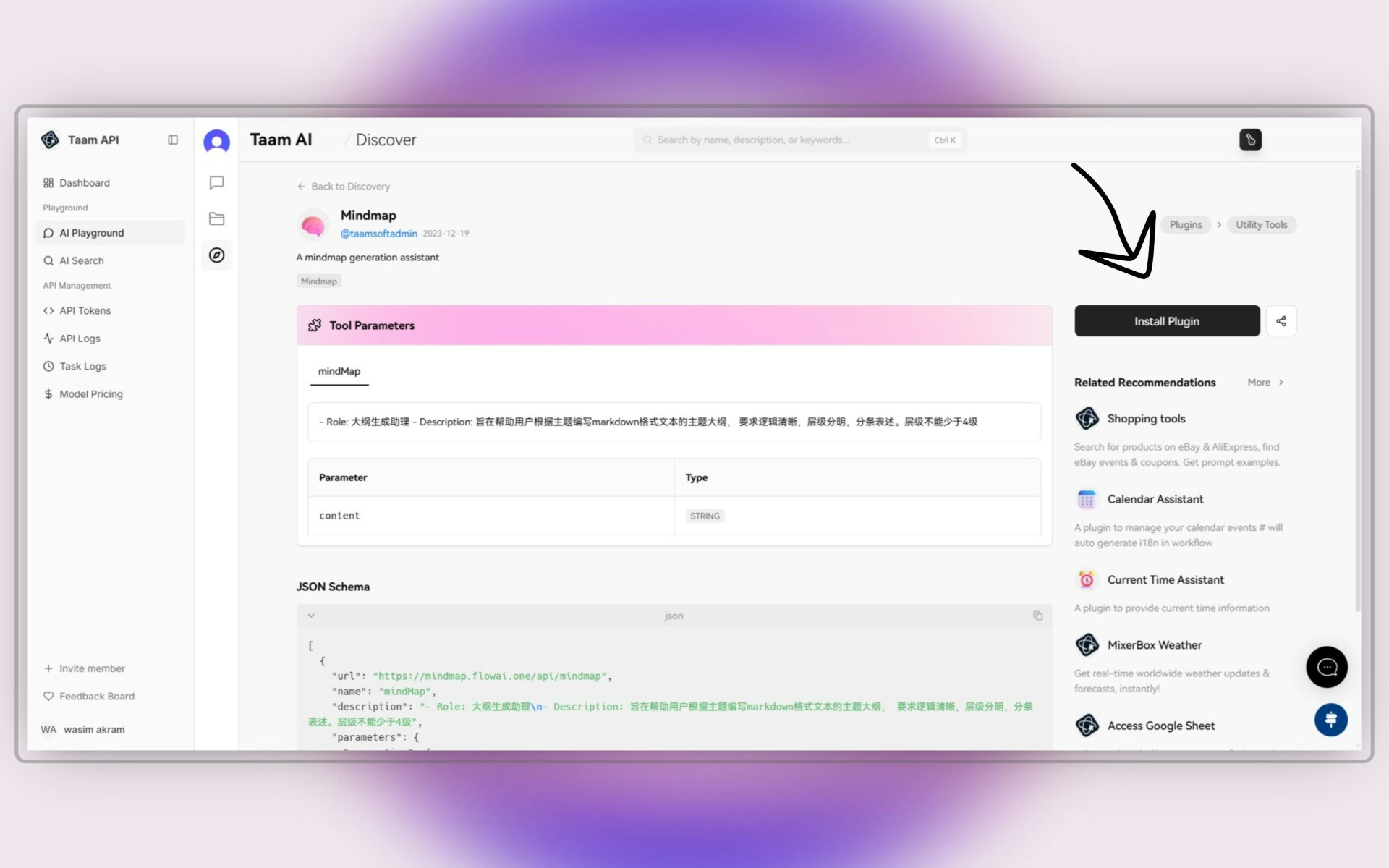 ## Using Plugins
1. Open assistant settings
2. Navigate to plugins section
3. Enable desired plugins
## Using Plugins
1. Open assistant settings
2. Navigate to plugins section
3. Enable desired plugins
 1. Plugin becomes available in chat
2. Use plugin commands in prompts
3. View plugin responses
## Best Practices
Keep credentials secure
Test before deployment
Track usage metrics
Some plugins may affect credit consumption rates. Review pricing before enabling plugins.
For custom plugin development, visit our [developer documentation](/api-reference/plugins).
1. Plugin becomes available in chat
2. Use plugin commands in prompts
3. View plugin responses
## Best Practices
Keep credentials secure
Test before deployment
Track usage metrics
Some plugins may affect credit consumption rates. Review pricing before enabling plugins.
For custom plugin development, visit our [developer documentation](/api-reference/plugins).