> ## Documentation Index
> Fetch the complete documentation index at: https://docs.gately.ai/llms.txt
> Use this file to discover all available pages before exploring further.
# Search Playground
> Explore advanced AI-powered search capabilities in Gately AI
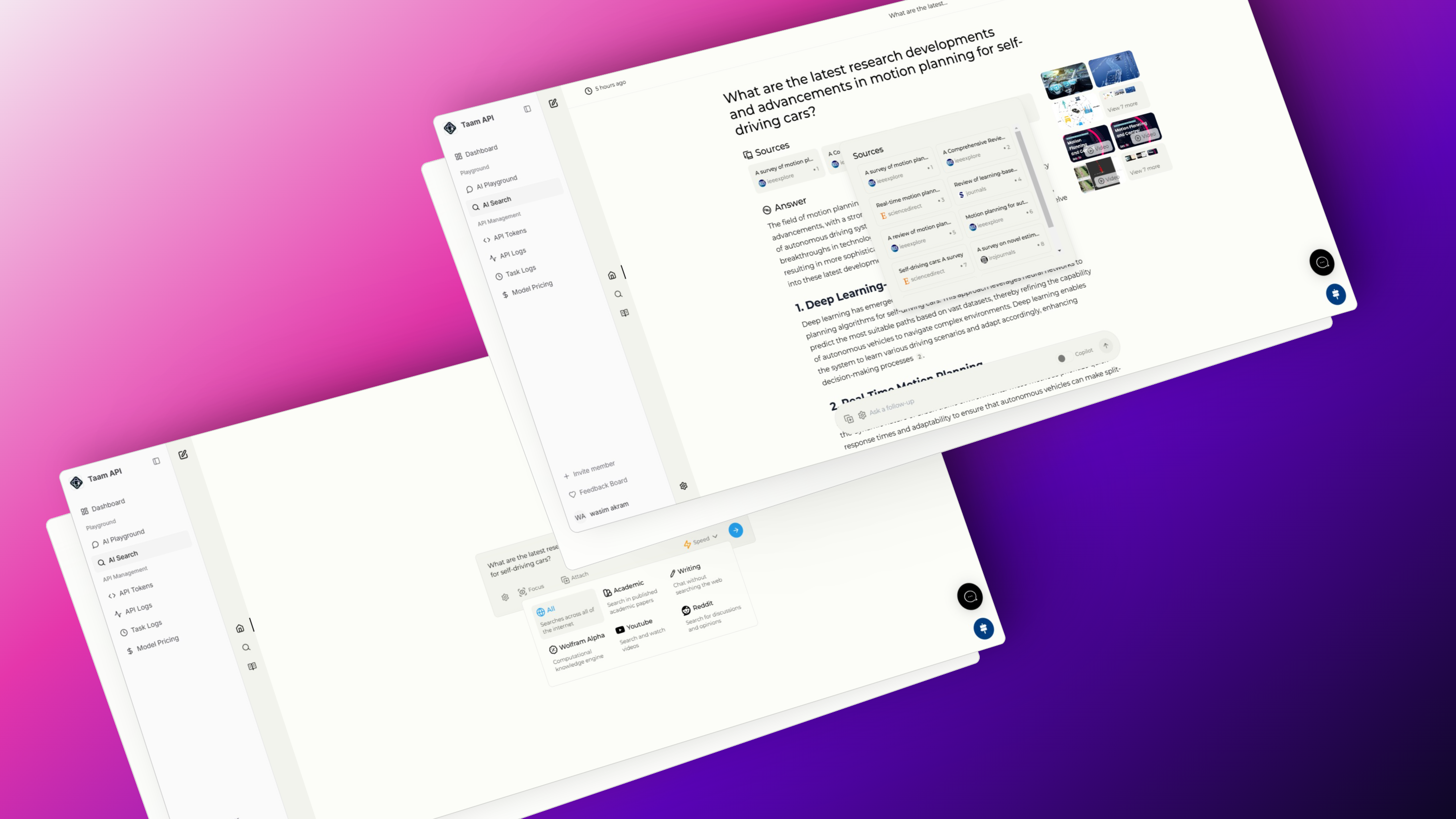 ## Search Modes
Generates multiple queries to find more relevant results
Visits top matches for deeper content analysis
This feature is currently in development and being refined for optimal performance.
Standard web search with:
* Query processing
* Result ranking
* Content summarization
## Focus Modes
## Search Modes
Generates multiple queries to find more relevant results
Visits top matches for deeper content analysis
This feature is currently in development and being refined for optimal performance.
Standard web search with:
* Query processing
* Result ranking
* Content summarization
## Focus Modes
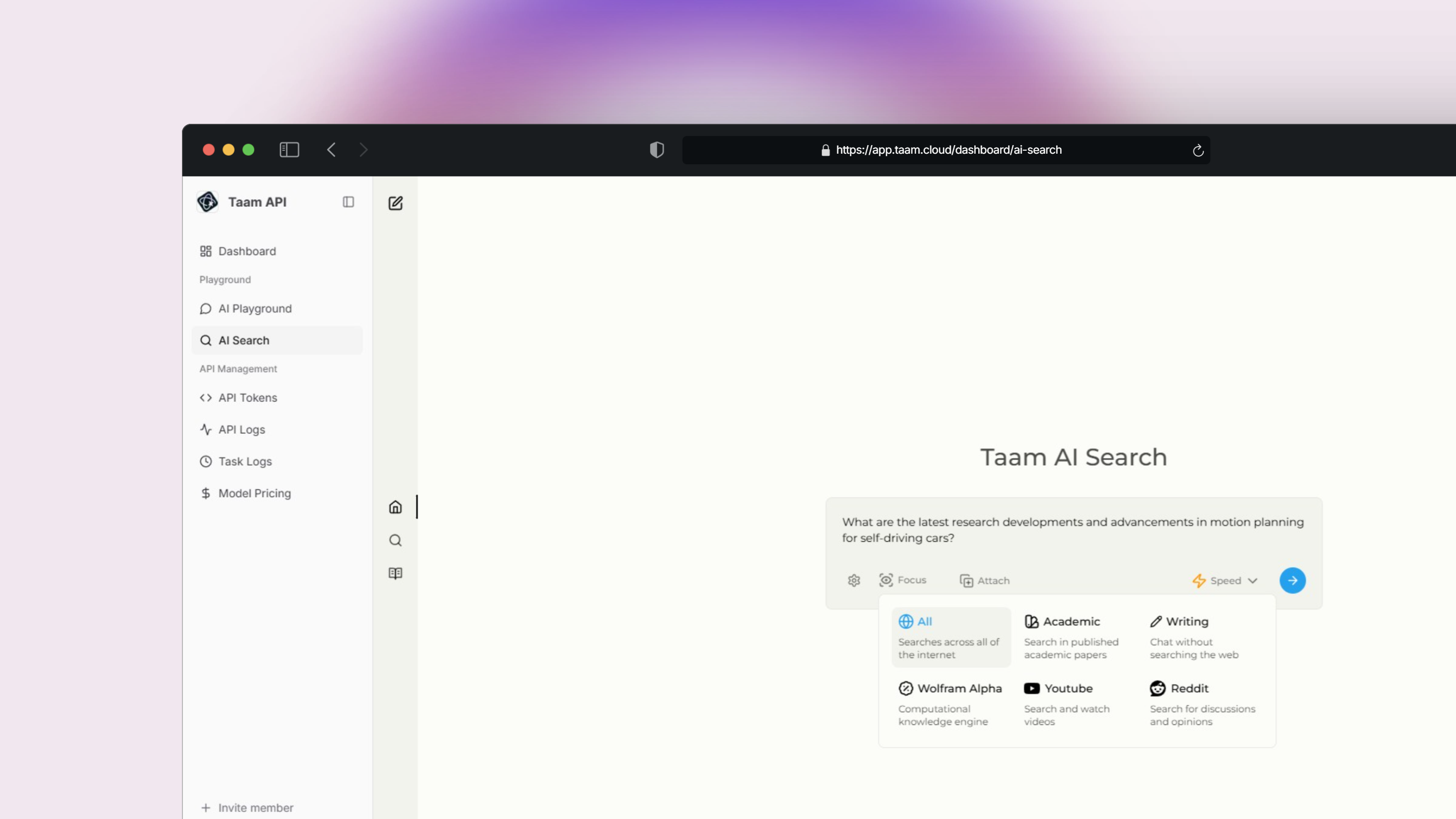 Comprehensive web search across all sources
AI-powered writing help without web search
Focused on articles and research papers
Video content search and analysis
Mathematical and data analysis queries
Community discussions and opinions
## Key Features
Get current information through:
* Live web searches
* SearxNG integration
* Dynamic result ranking
Support for:
* Text queries
* Image search
* Video search
Comprehensive web search across all sources
AI-powered writing help without web search
Focused on articles and research papers
Video content search and analysis
Mathematical and data analysis queries
Community discussions and opinions
## Key Features
Get current information through:
* Live web searches
* SearxNG integration
* Dynamic result ranking
Support for:
* Text queries
* Image search
* Video search
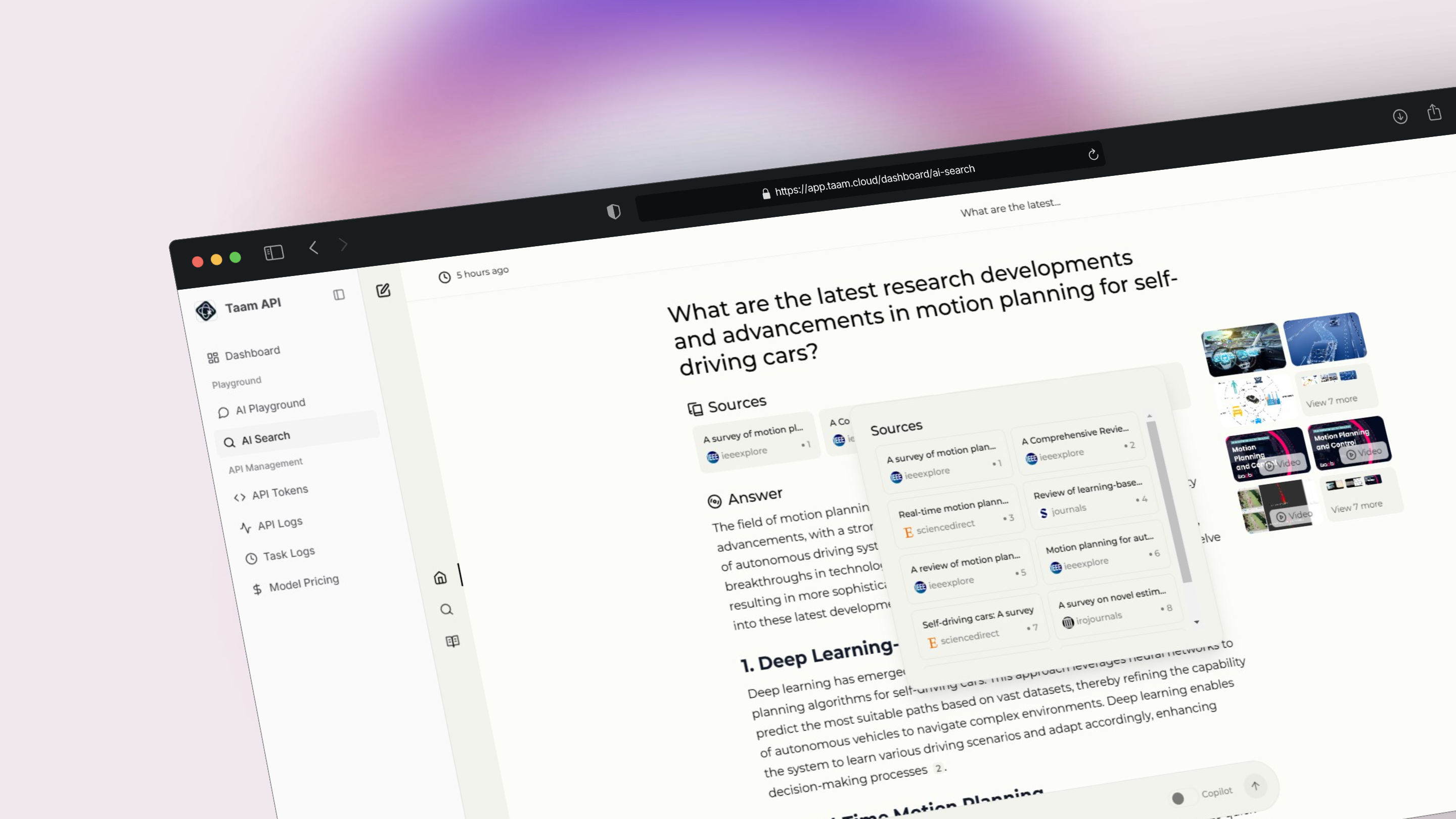 * Content relevance scoring
* Source credibility check
* Information freshness
## Using Search Modes
1. Open search interface
2. Choose search mode
3. Select focus mode if needed
* Content relevance scoring
* Source credibility check
* Information freshness
## Using Search Modes
1. Open search interface
2. Choose search mode
3. Select focus mode if needed
 Customize your search with:
* Time range filters
* Source preferences
* Language settings
* Result count
## Integration Options
Integrate search capabilities into your applications
Test and experiment with search features
Search queries consume credits based on mode and result depth. Monitor usage in your dashboard.
## Best Practices
Choose the mode that best matches your search intent:
* General queries: All Web mode
* Research: Academic mode
* Technical questions: Wolfram Alpha mode
* Use specific keywords
* Include relevant context
* Specify time constraints if needed
* Check source credibility
* Verify information freshness
* Compare multiple sources
For API integration details and documentation, visit our [Search API Guide](/api-reference/endpoint/search-intro).
Customize your search with:
* Time range filters
* Source preferences
* Language settings
* Result count
## Integration Options
Integrate search capabilities into your applications
Test and experiment with search features
Search queries consume credits based on mode and result depth. Monitor usage in your dashboard.
## Best Practices
Choose the mode that best matches your search intent:
* General queries: All Web mode
* Research: Academic mode
* Technical questions: Wolfram Alpha mode
* Use specific keywords
* Include relevant context
* Specify time constraints if needed
* Check source credibility
* Verify information freshness
* Compare multiple sources
For API integration details and documentation, visit our [Search API Guide](/api-reference/endpoint/search-intro).