> ## Documentation Index
> Fetch the complete documentation index at: https://docs.gately.ai/llms.txt
> Use this file to discover all available pages before exploring further.
# Getting Started
> Learn how to use the Gately AI web interface and features
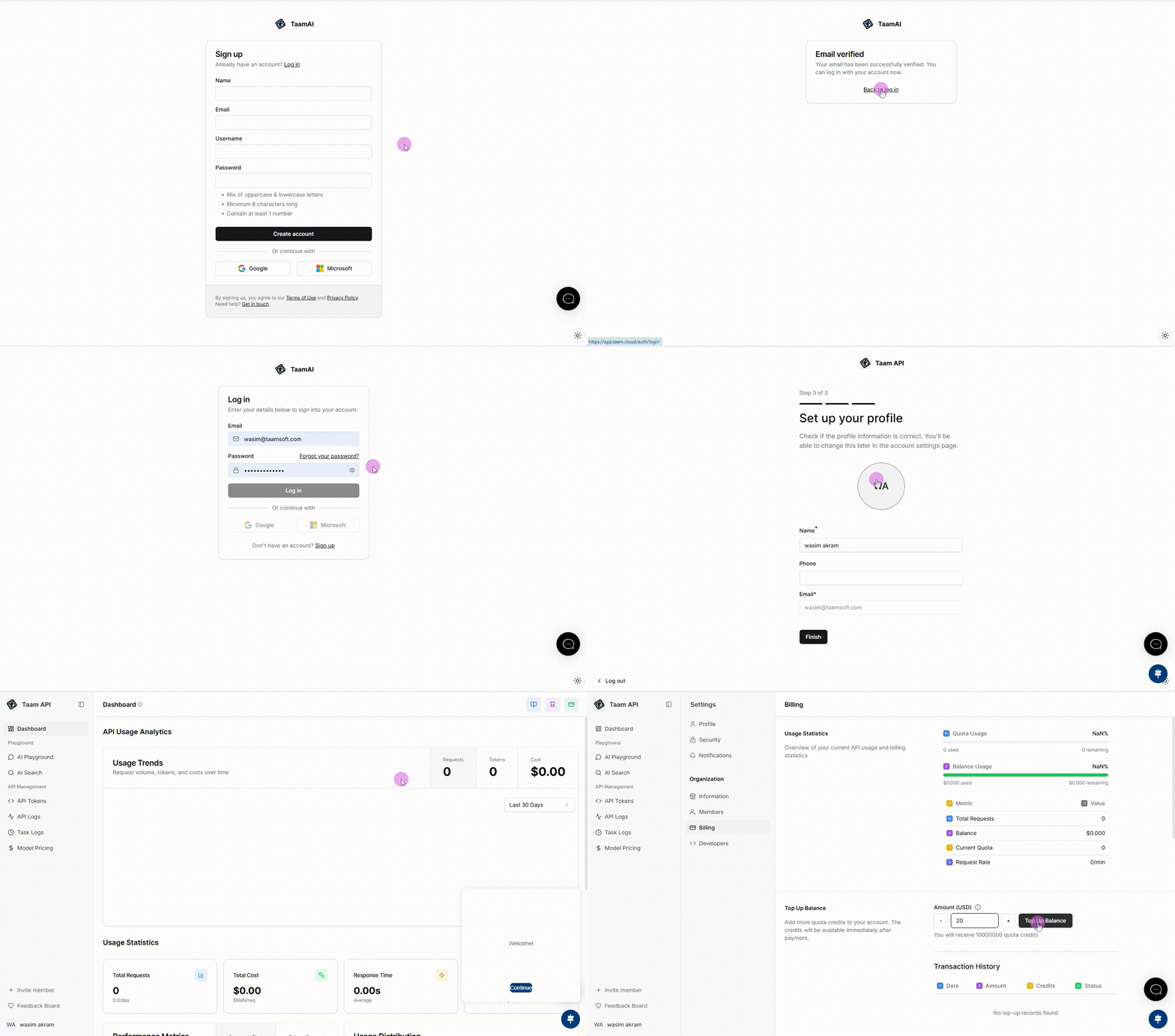 ## Account Setup
1. Visit [Gately AI](https://app.gately.ai)
2. Click "Sign Up" button
3. Enter your email and password
4. Verify your email address
## Account Setup
1. Visit [Gately AI](https://app.gately.ai)
2. Click "Sign Up" button
3. Enter your email and password
4. Verify your email address
 1. Enter organization name
2. Choose industry type
3. Select billing currency
4. Add team members (optional)
## Using the Dashboard
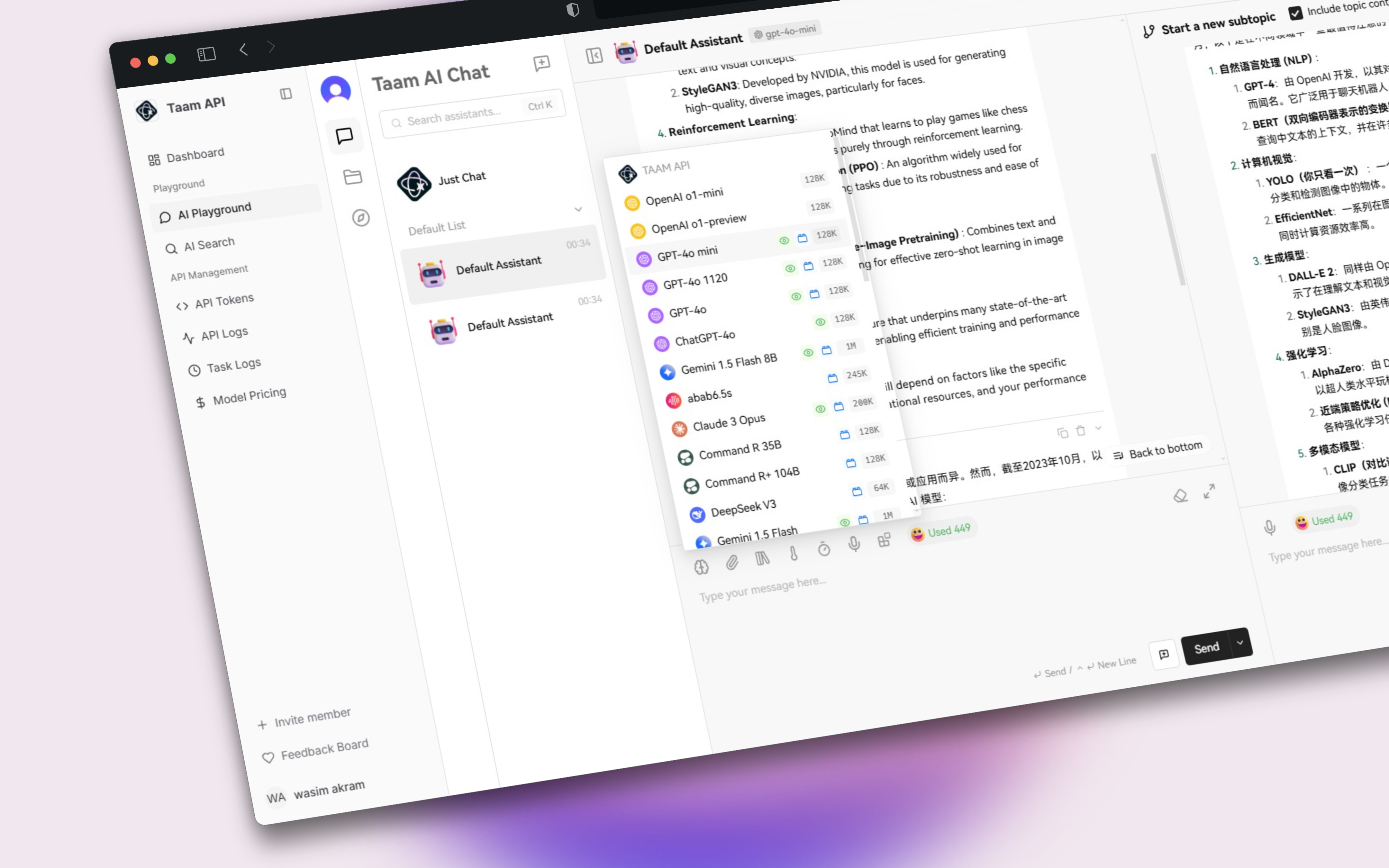
Our interactive chat interface lets you communicate with AI models:
1. Open [Chat Interface](https://app.gately.ai/dashboard/playground)
2. Select your preferred AI model
3. Start a conversation
4. Save important conversations
1. Enter organization name
2. Choose industry type
3. Select billing currency
4. Add team members (optional)
## Using the Dashboard
Our interactive chat interface lets you communicate with AI models:
1. Open [Chat Interface](https://app.gately.ai/dashboard/playground)
2. Select your preferred AI model
3. Start a conversation
4. Save important conversations
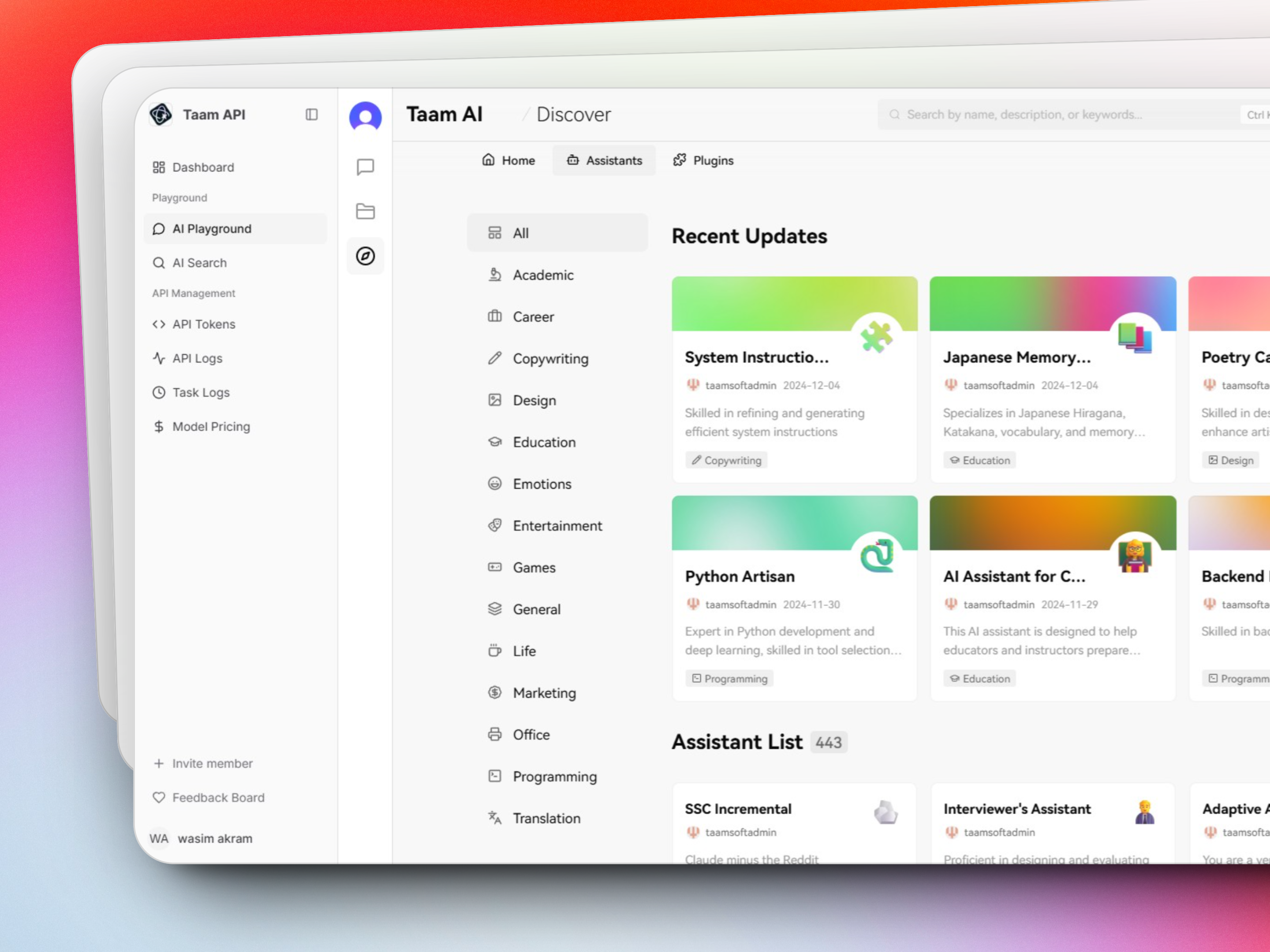
 Experiment with different AI models and settings:
1. Access [AI Playground](https://app.gately.ai/dashboard/playground)
2. Choose model type:
* Text Generation
* Image Creation
* Audio Processing
3. Adjust parameters
4. View results in real-time
Experiment with different AI models and settings:
1. Access [AI Playground](https://app.gately.ai/dashboard/playground)
2. Choose model type:
* Text Generation
* Image Creation
* Audio Processing
3. Adjust parameters
4. View results in real-time
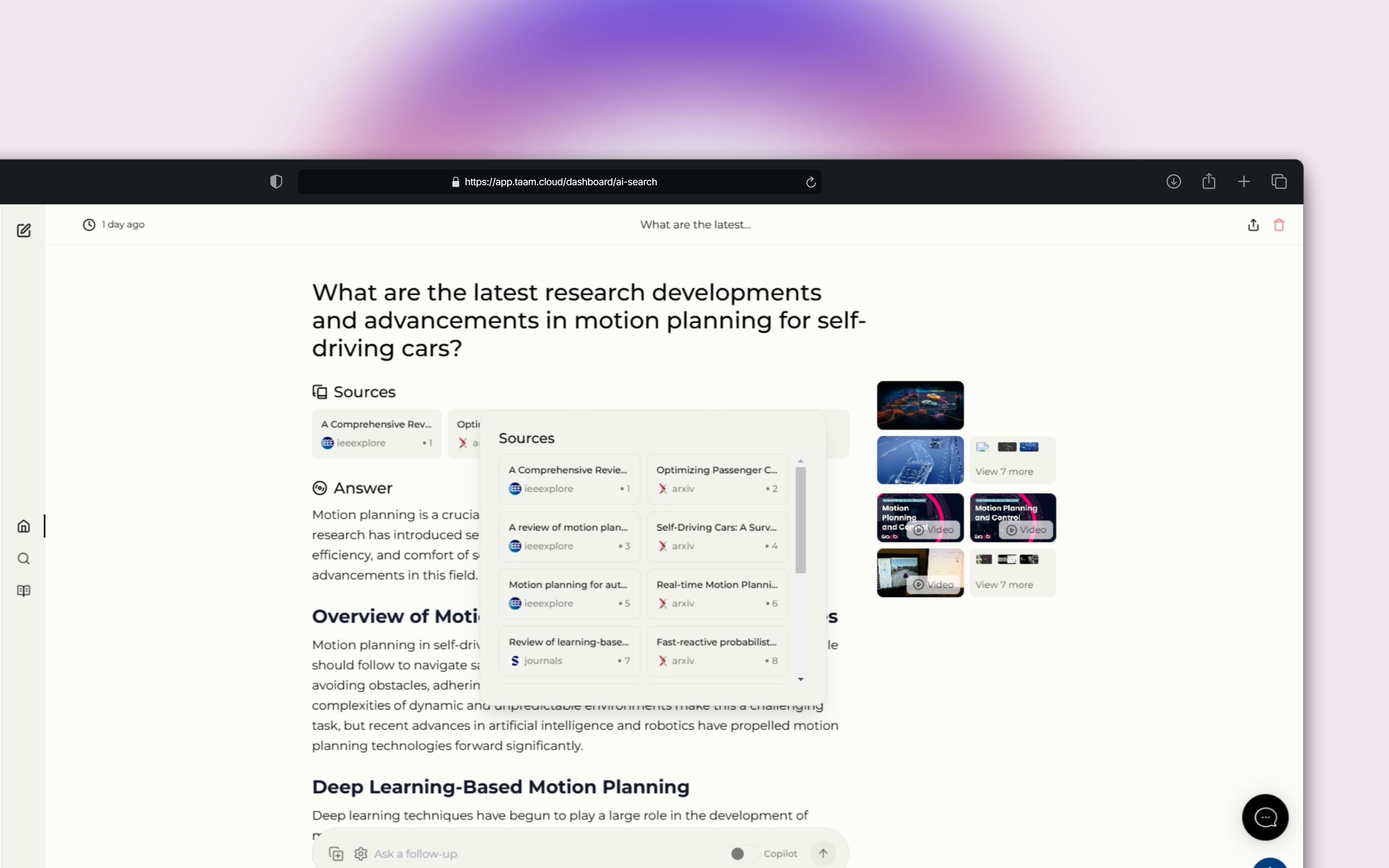
 Use our powerful search capabilities:
1. Go to [AI Search](https://app.gately.ai/dashboard/ai-search)
2. Enter your search query
3. Filter results by type
4. Save search templates
Use our powerful search capabilities:
1. Go to [AI Search](https://app.gately.ai/dashboard/ai-search)
2. Enter your search query
3. Filter results by type
4. Save search templates
 ## Managing Your Account
Monitor your usage at [Dashboard Home](https://app.gately.ai/dashboard/home):
* Credit consumption
* API calls
* Active sessions
Handle payments at [Billing Settings](https://app.gately.ai/dashboard/settings/organization/billing):
* View invoices
* Add payment methods
* Set up auto-reload
## Key Features
Access all your previous conversations and generated content in the History section
Create and save templates for frequent tasks and prompts
Share resources and manage team access in Organization Settings
## Additional Tools
Track all API requests
Check model availability
Configure preferences
For API integration documentation, please visit our [API Reference](/api-reference/introduction).
Get support:
* [Video Tutorials](https://www.youtube.com/channel/UC0KLxvlF8vq9tdIc-3anJYQ/)
* [Discord Community](https://discord.gg/taamcloud)
* [Email Support](mailto:support@taam.cloud)
## Managing Your Account
Monitor your usage at [Dashboard Home](https://app.gately.ai/dashboard/home):
* Credit consumption
* API calls
* Active sessions
Handle payments at [Billing Settings](https://app.gately.ai/dashboard/settings/organization/billing):
* View invoices
* Add payment methods
* Set up auto-reload
## Key Features
Access all your previous conversations and generated content in the History section
Create and save templates for frequent tasks and prompts
Share resources and manage team access in Organization Settings
## Additional Tools
Track all API requests
Check model availability
Configure preferences
For API integration documentation, please visit our [API Reference](/api-reference/introduction).
Get support:
* [Video Tutorials](https://www.youtube.com/channel/UC0KLxvlF8vq9tdIc-3anJYQ/)
* [Discord Community](https://discord.gg/taamcloud)
* [Email Support](mailto:support@taam.cloud)